
Appearance
Send events to your systems with webhooks
A webhook sends your organization's events to a URL of yours the moment they happen. A profile is approved, an alert closes, an intake form arrives: your case management system, data warehouse or chat bot hears about it at once. Nothing has to poll the API for changes.
This guide walks through the whole lifecycle with real screens:
- Create a webhook
- Send a test event
- Watch a real event arrive
- Read the delivery log
- When a delivery does not get through
- Change, rotate, turn off or delete a webhook
- What CryptoComply sends
- Verify the signature
- Build a receiver that holds up
The last section lists where the technical reference lives.
Access
Only the Admin role can manage webhooks. No custom role can hold this permission. If Settings → Webhooks is missing, ask an organization admin.
Before you start
You need a receiver: an endpoint in your own systems that accepts the events. It must meet four conditions.
| Requirement | Why |
|---|---|
An https:// URL | CryptoComply sends events over HTTPS (Hypertext Transfer Protocol Secure) only. |
| Reachable from the internet, on a public address | Private and internal addresses are refused, when you save and again before every request. |
| Its final URL, not one that redirects | Redirects are not followed. A 3xx answer counts as a failure. |
Answers any 2xx within 10 seconds | Anything else, a 4xx included, is a failure and the event is sent again. |
Your receiver also checks a signature on every request, so it knows the request comes from CryptoComply. Section 8 shows how.
1 · Create a webhook
Settings → Webhooks → Add Webhook.
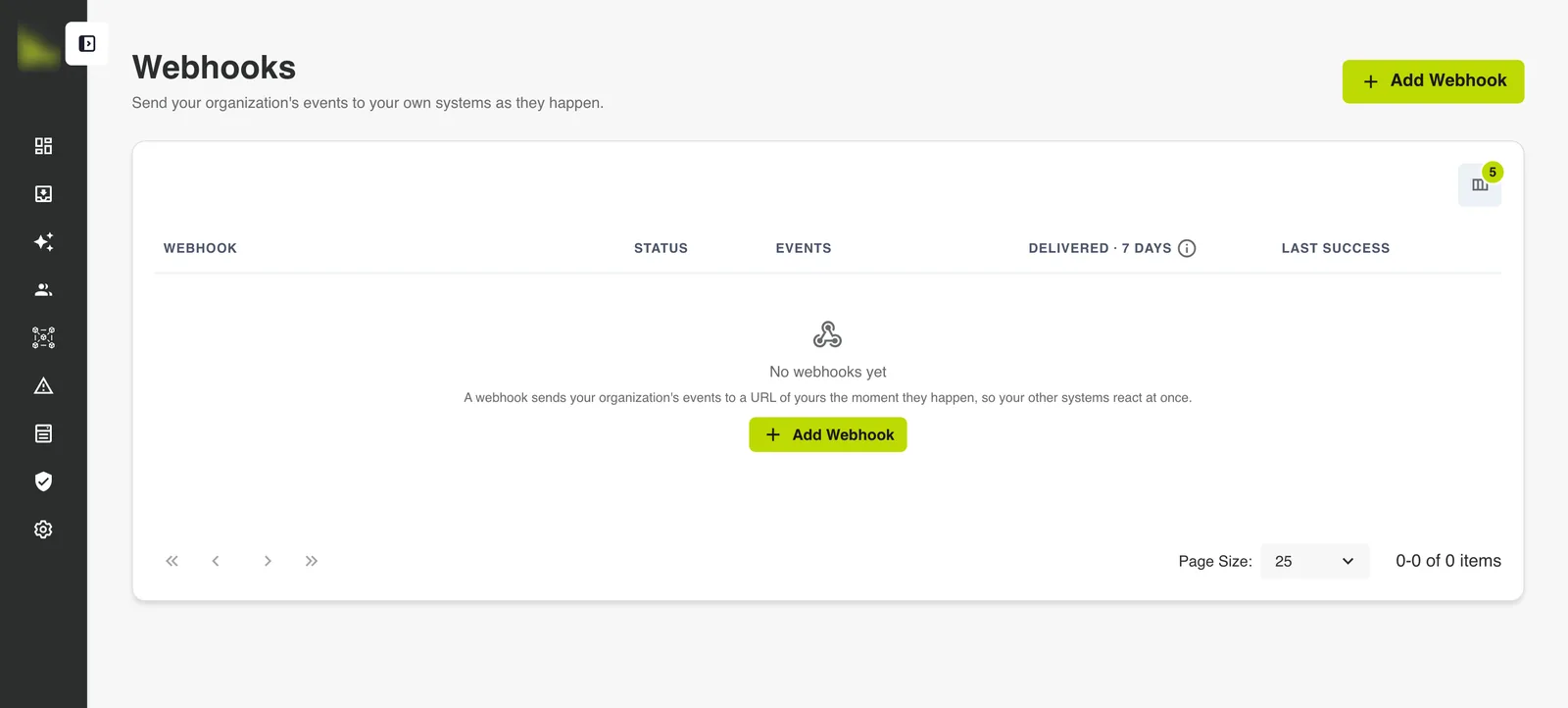
- Name (optional). It tells this webhook apart from your others. When you leave it empty, the URL is used.
- Endpoint URL (required). Your receiver's HTTPS address, up to 2,000 characters.
- Events to Send. Choose one of two options:
- All Events sends every event a webhook can receive, including event types added later.
- Selected Events sends only the events you tick. Search by name, or tick a whole category at once.
- Choose Add Webhook.
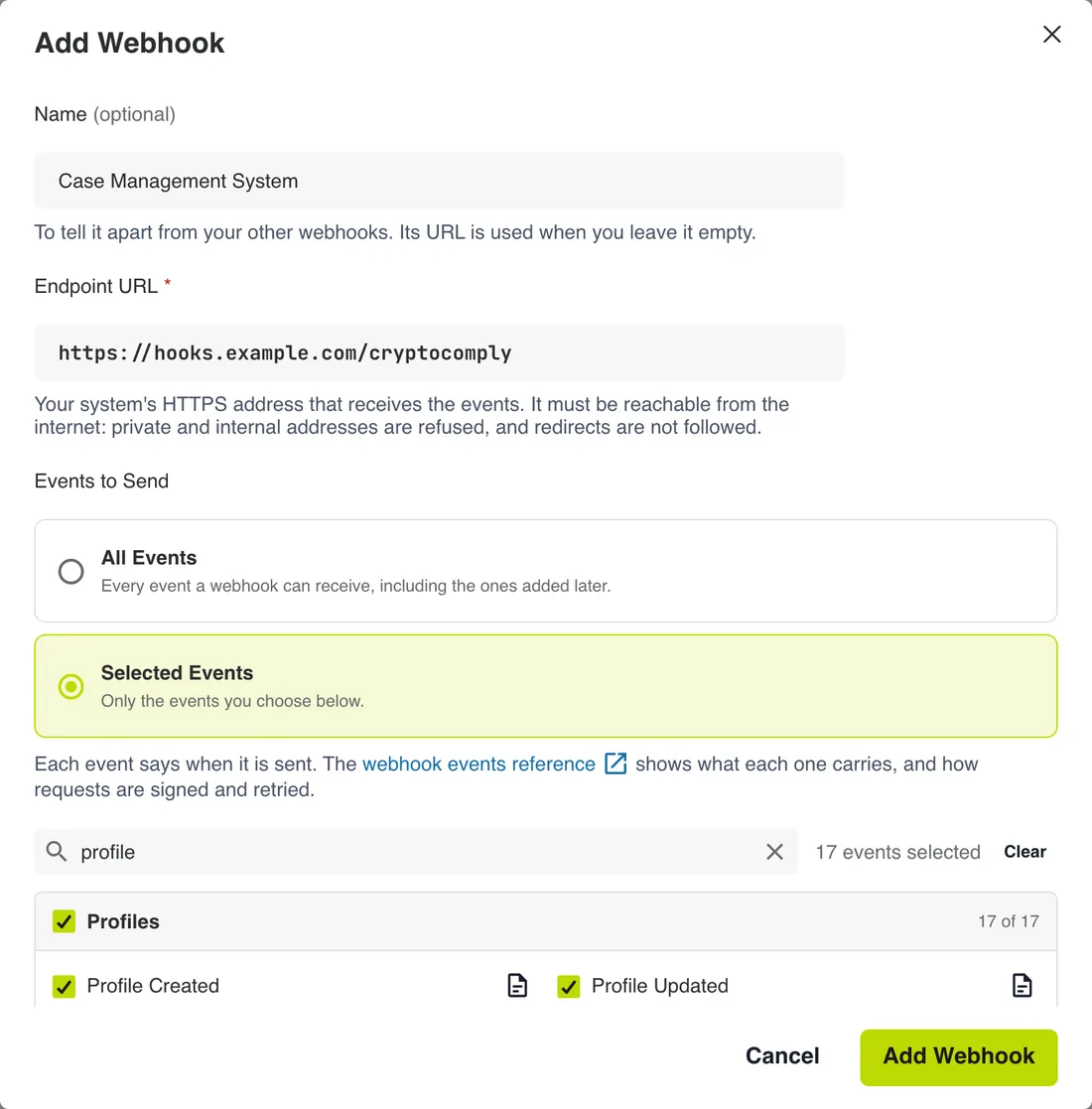
Each event in the list says when it is sent. The document icon beside it opens that event in the API reference, with its fields and an example.
Which events you can choose
You can only choose events about records your role can read. All Events needs a role that can read every kind of record. An event your role cannot read appears locked.
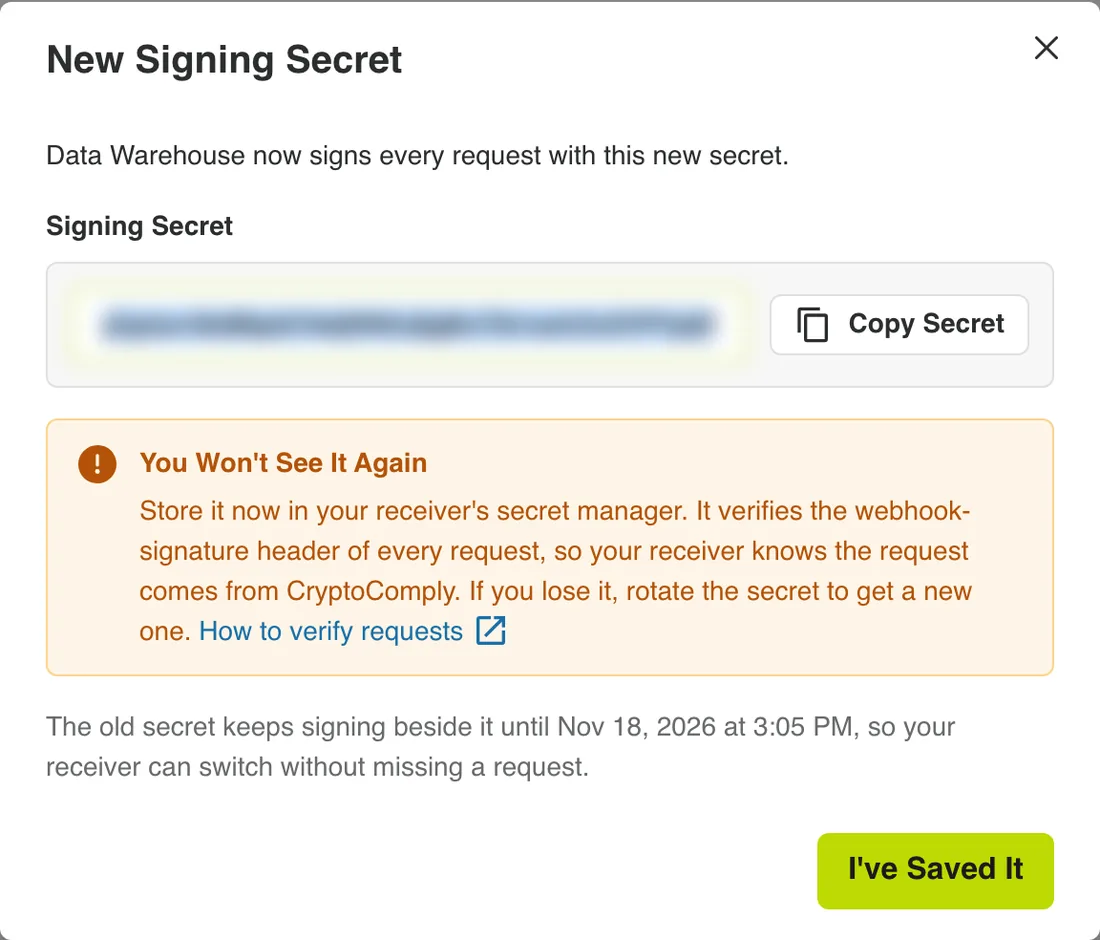
Save the signing secret
The webhook is created turned on. Its signing secret appears once, and never again.
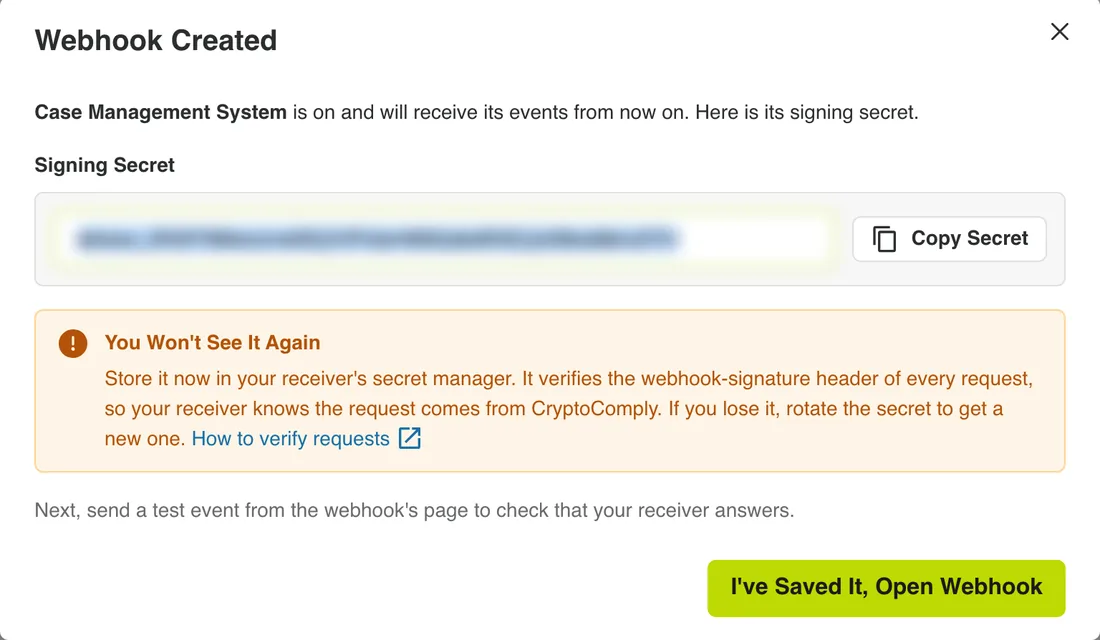
Choose Copy Secret and store it in your receiver's secret manager. The secret starts with whsec_. If you lose it, rotate the secret to get a new one.
This dialog cannot be closed by clicking outside it or pressing Escape. Choose I've Saved It, Open Webhook to continue.
When the URL is refused
The form checks the URL before it saves. These are the messages you can see under Endpoint URL:
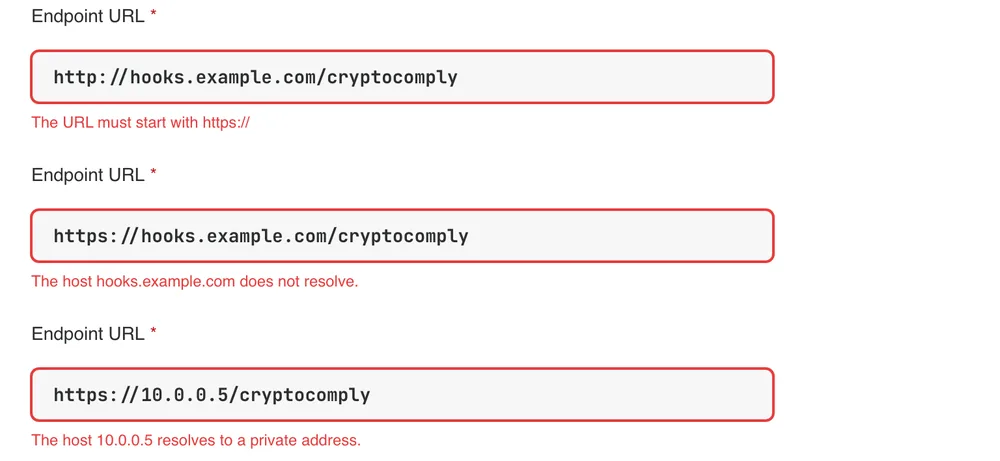
| Message | What to do |
|---|---|
| The URL must start with https:// | Use the HTTPS address of your receiver. |
| The URL must name a host, without credentials. | Remove any user:password@ part from the URL. |
| The URL's port is not valid. | Check the port number after the host. |
| The host … does not resolve. | The domain has no DNS (Domain Name System) record. Check its spelling, or publish the record. |
| The host … resolves to a private address. | The receiver must be reachable from the internet. Expose it on a public address. |
| Choose at least one event, or All Events. | Pick at least one event, or choose All Events. |
2 · Send a test event
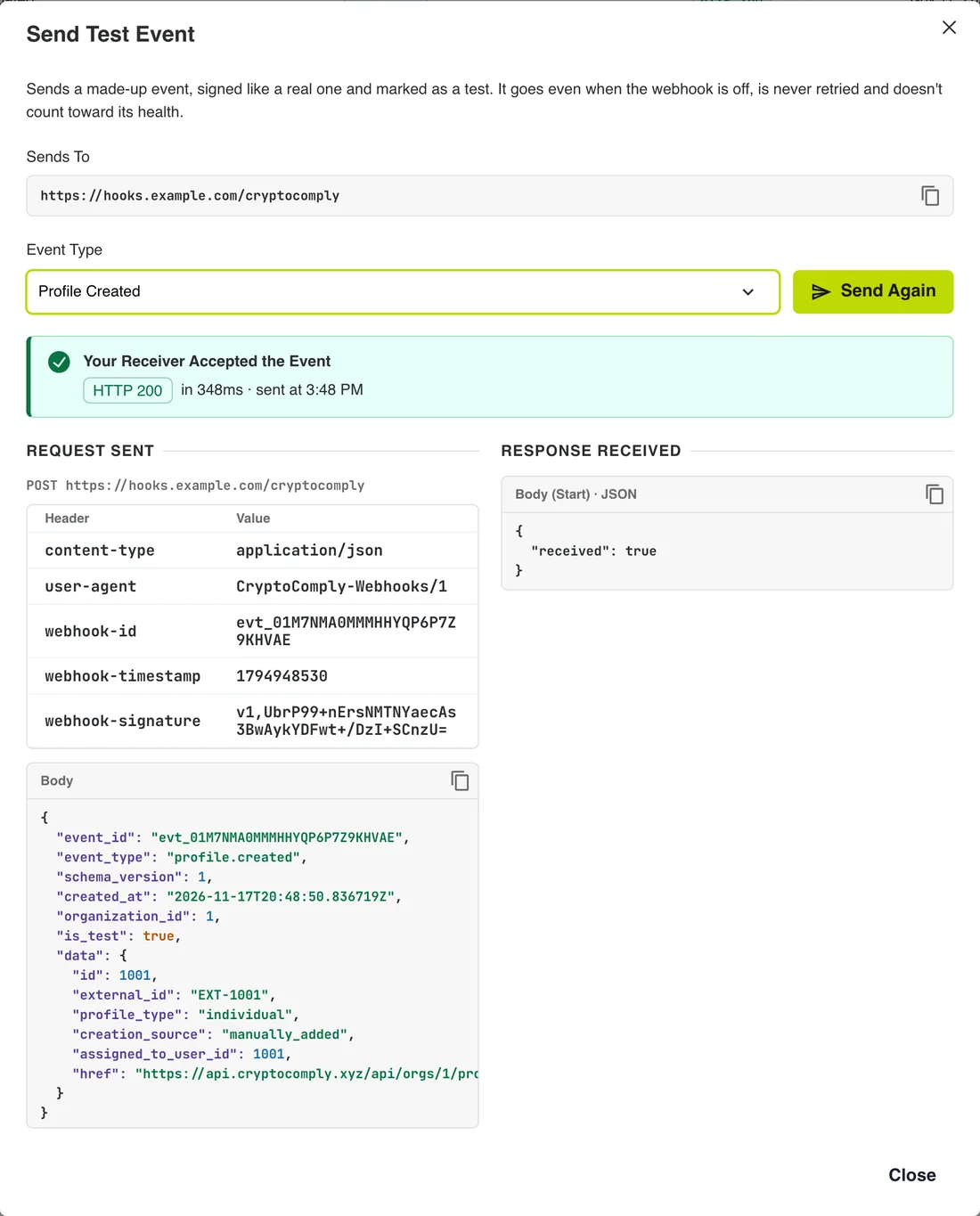
Before you rely on the webhook, check that your receiver answers. On the webhook's page, choose Actions → Send Test, pick an event type, and choose Send Test.
The result shows exactly what was sent and what came back:
- Request Sent: the URL, every header and the body.
- Response Received: the status code, the time it took and the start of the body.
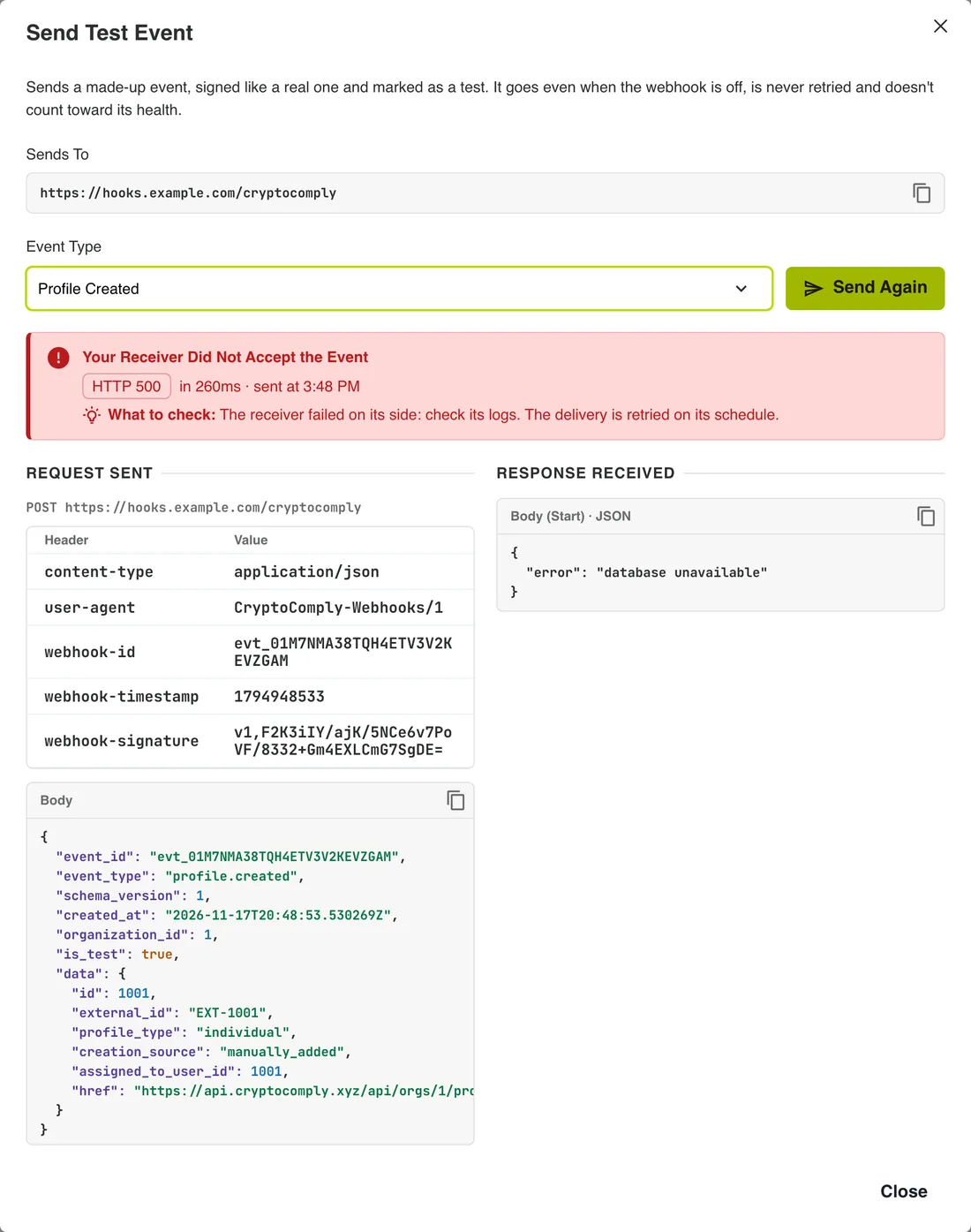
When the receiver does not answer 2xx, the result says so and suggests what to check:
A test event differs from a real one in four ways:
| Test event | Real event | |
|---|---|---|
is_test in the body | true | false |
| Records it names | Made up (id 1001, external_id EXT-1001). They do not exist. | Real records you can read with href. |
| Sent when the webhook is off, or not subscribed to that type | Yes | No |
| Retried, kept in the delivery log, counted in health | No | Yes |
Your receiver should accept a test event but not act on it: check is_test first.
3 · Watch a real event arrive
Any change in CryptoComply that matches the webhook's events sends one. Here the profile's risk rating goes from Low to High. The webhook receives profile.risk_changed, the delivery log shows it delivered, and the receiver gets it with a valid signature.
Simple ways to cause an event from the app:
| Do this in CryptoComply | Event sent |
|---|---|
| Add a profile | profile.created |
| Edit a profile's fields, custom fields or tags | profile.updated |
| Change a profile's review status, for example to Approved | profile.approved, or the event for that status |
| Change a profile's risk rating | profile.risk_changed |
| Assign a profile or an alert to someone | profile.assigned or alert.assigned |
| Close an alert with a decision | alert.closed |
| Add a blockchain address | blockchain_address.created |
| Send an RFI (request for information) | rfi.created |
| Change a member's role | member.role_changed |
The full list, with when each event is sent, is in section 7.
4 · Read the delivery log
Settings → Webhooks lists every webhook with its status, its events, the share delivered in the last 7 days and its last success.
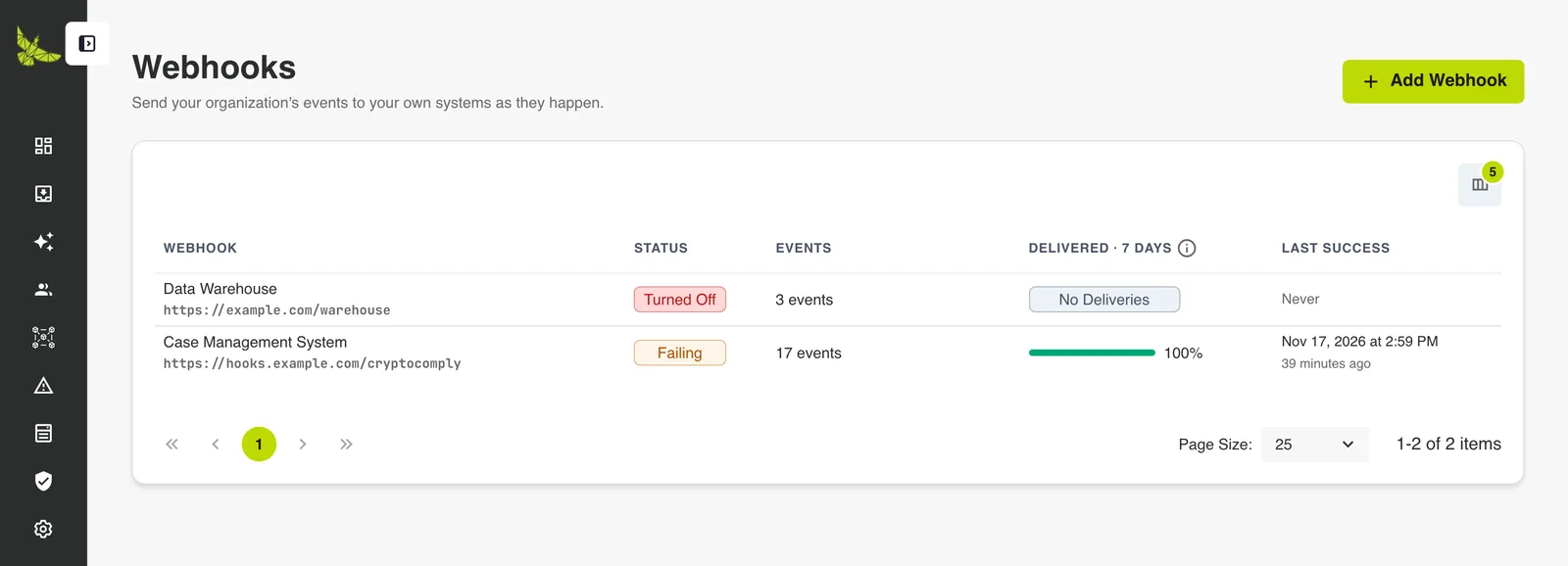
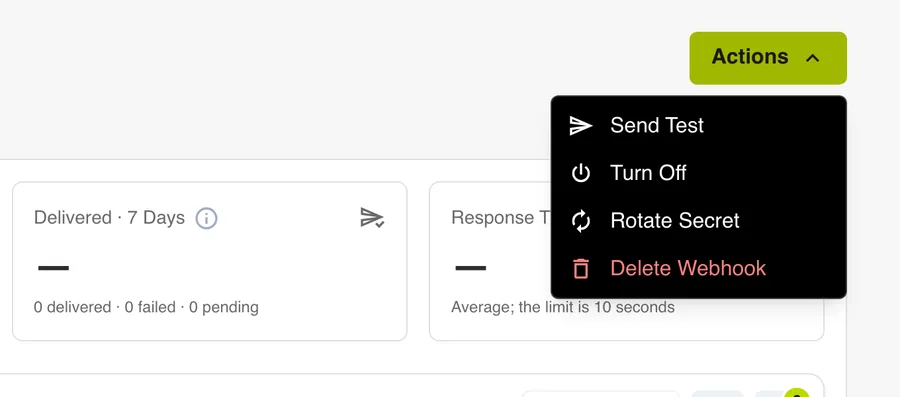
Open a webhook to see its page. The Actions menu holds every action on it.
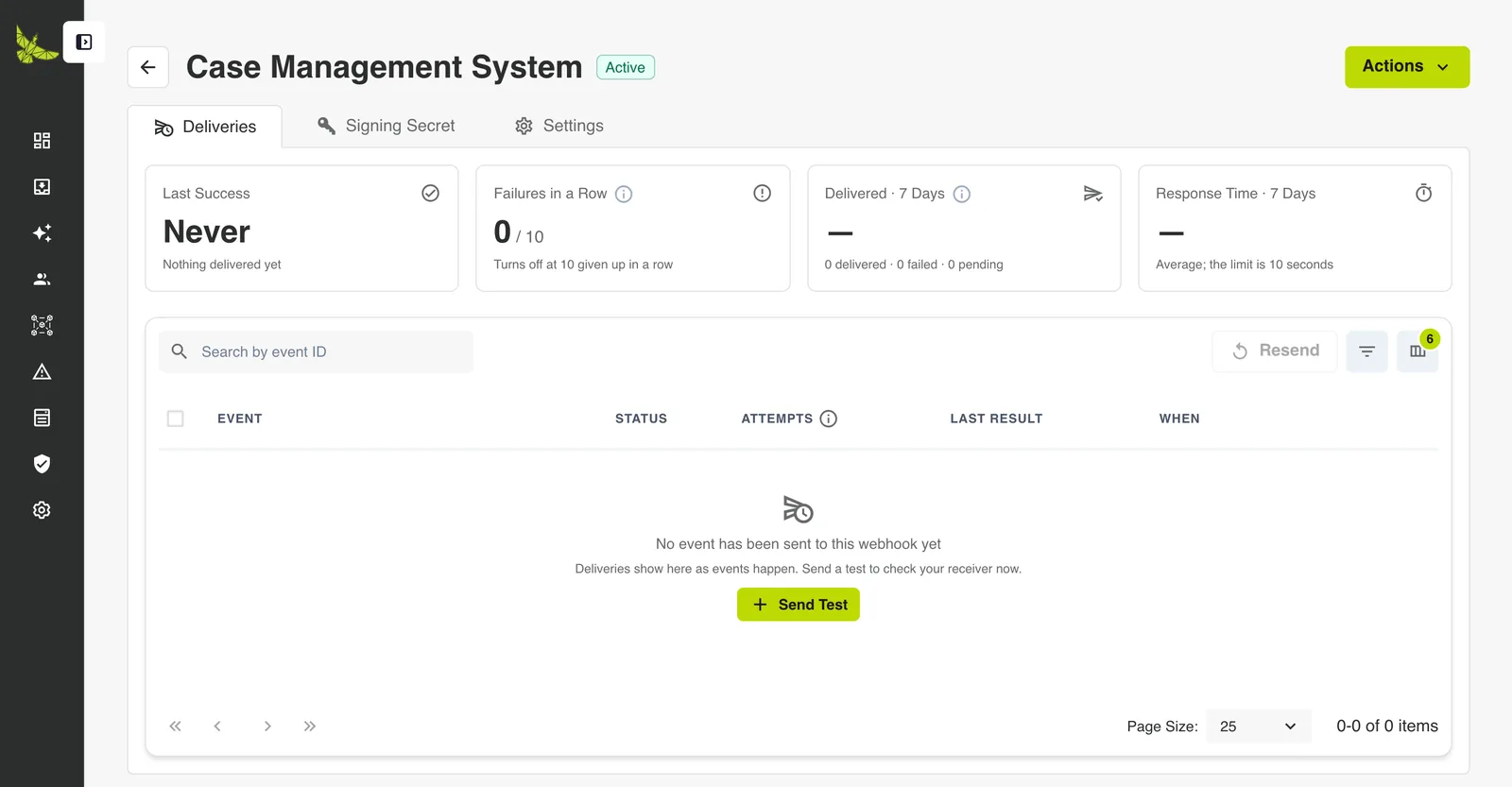
The health tiles
| Tile | What it shows |
|---|---|
| Last Success | When a delivery last got through. "Never" until the first one does. |
| Failures in a Row | Deliveries given up on in a row, out of 10. At 10 the webhook turns off. |
| Delivered · 7 Days | Of the deliveries created in the last 7 days, the share delivered: delivered ÷ (delivered + failed). Pending ones do not count until they finish. |
| Response Time · 7 Days | Your receiver's average answer time. The limit is 10 seconds. |
The deliveries table
One row per event sent to this webhook.
| Column | Meaning |
|---|---|
| Event | The event's name and its ID (evt_…). Search by event ID above the table. |
| Status | Delivered, Pending (being sent or waiting for a retry) or Failed (every attempt failed). Filter by it with the filter button. |
| Attempts | Attempts made, out of the maximum. |
| Last Result | The last answer: HTTP 200, HTTP 503, Timed out and so on, with its duration. |
| When | When it was delivered, or when the next attempt goes: "Retry in 5 minutes", "Due to send", "Waiting for turn on". |
The delivery detail
Click a row to open it. You see every attempt, what was sent and what your receiver answered last.
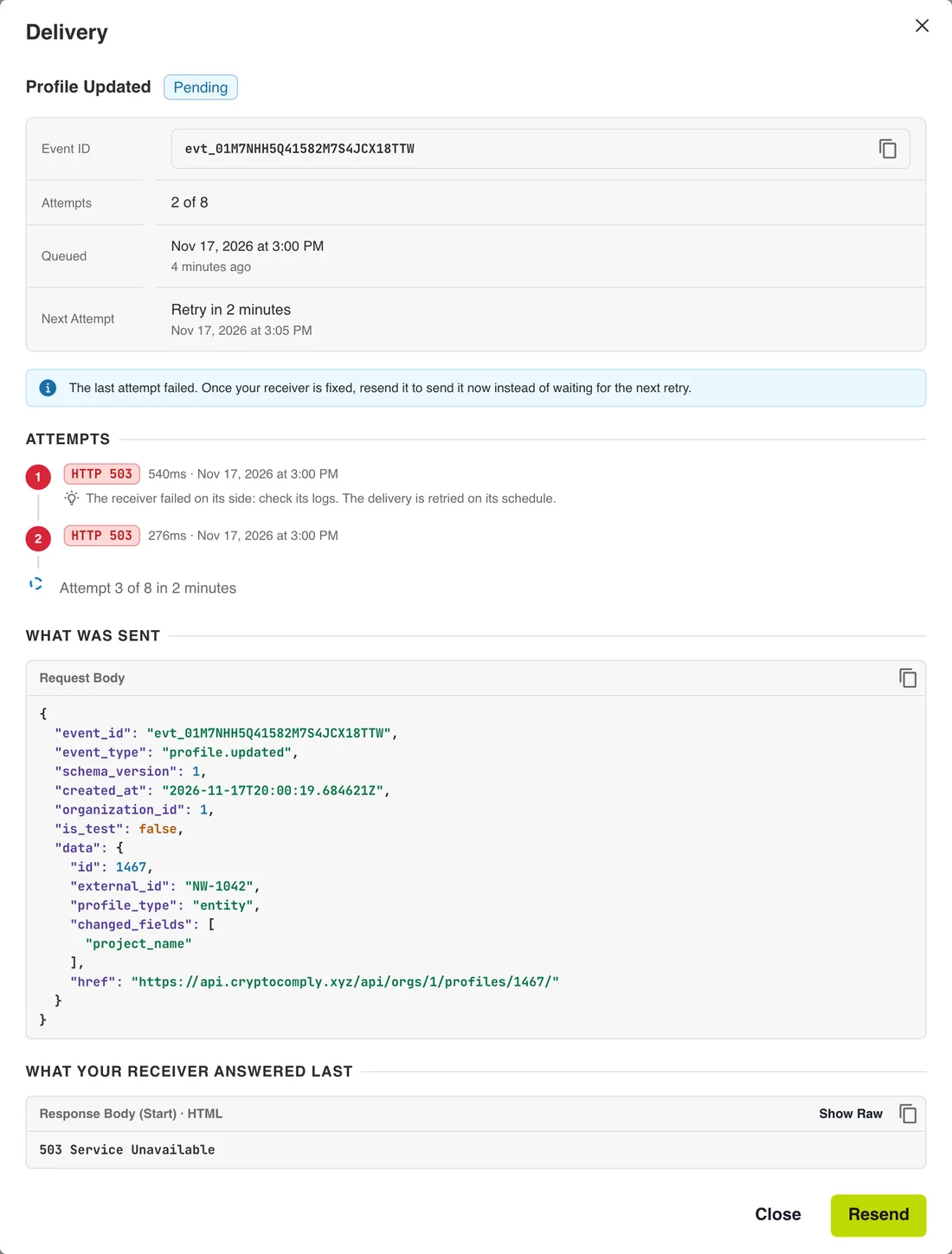
- Attempts lists each try with its result, duration and time. A hint under a failed attempt says what to check.
- What Was Sent is the request body.
- What Your Receiver Answered Last keeps the start of the last answer, up to 2,000 characters. JSON is indented. An HTML page shows as text; Show Raw shows its markup.
- Resend sends the event again without waiting for its next retry. It appears when the delivery is waiting for a retry or has failed.
5 · When a delivery does not get through
What CryptoComply does
A delivery that fails is sent again on a fixed schedule: 8 attempts over about 27.5 hours.
| Attempt | 1 | 2 | 3 | 4 | 5 | 6 | 7 | 8 |
|---|---|---|---|---|---|---|---|---|
| After the previous one | at once | 5 s | 5 min | 30 min | 2 h | 5 h | 10 h | 10 h |
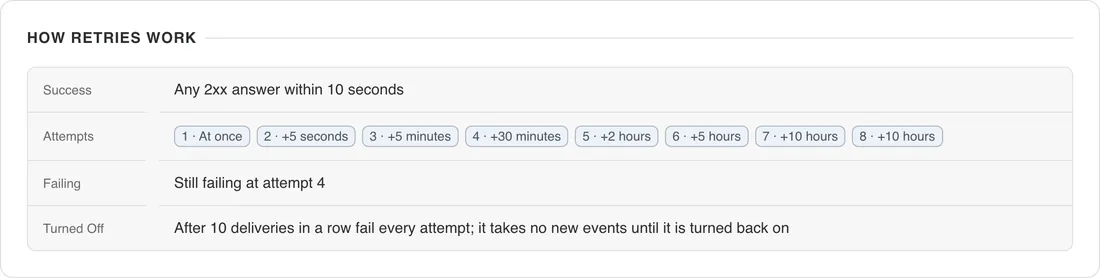
The webhook's status follows its deliveries:
| Status | When | What happens |
|---|---|---|
| Active | Deliveries get through, or have only just started failing. | Events are sent as they happen. |
| Failing | A delivery is still failing at its 4th attempt, about 35 minutes after the event. | Events are still sent and retried. Any 2xx makes the webhook Active again. |
| Turned Off | 10 deliveries in a row were given up on, or an admin turned it off. | No new events are taken. Pending deliveries wait until it is turned back on. |
Events that happen while a webhook is off are never sent to it
Turning the webhook back on sends the deliveries it already held, not the events it missed. Use the events API to catch up on what changed in the meantime.
What you see
A banner at the top of the Deliveries tab says what is wrong, when it last failed and what to check.
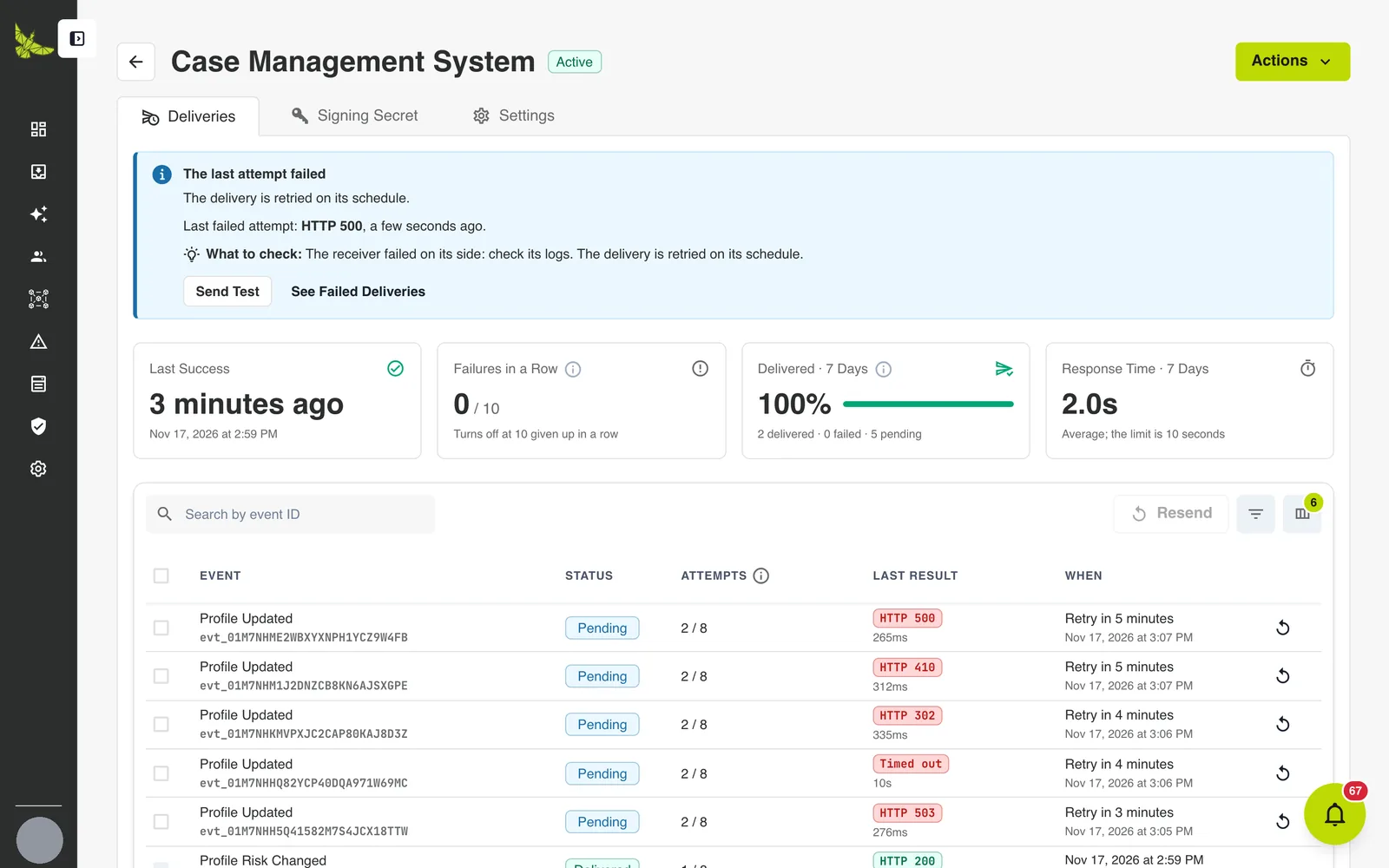
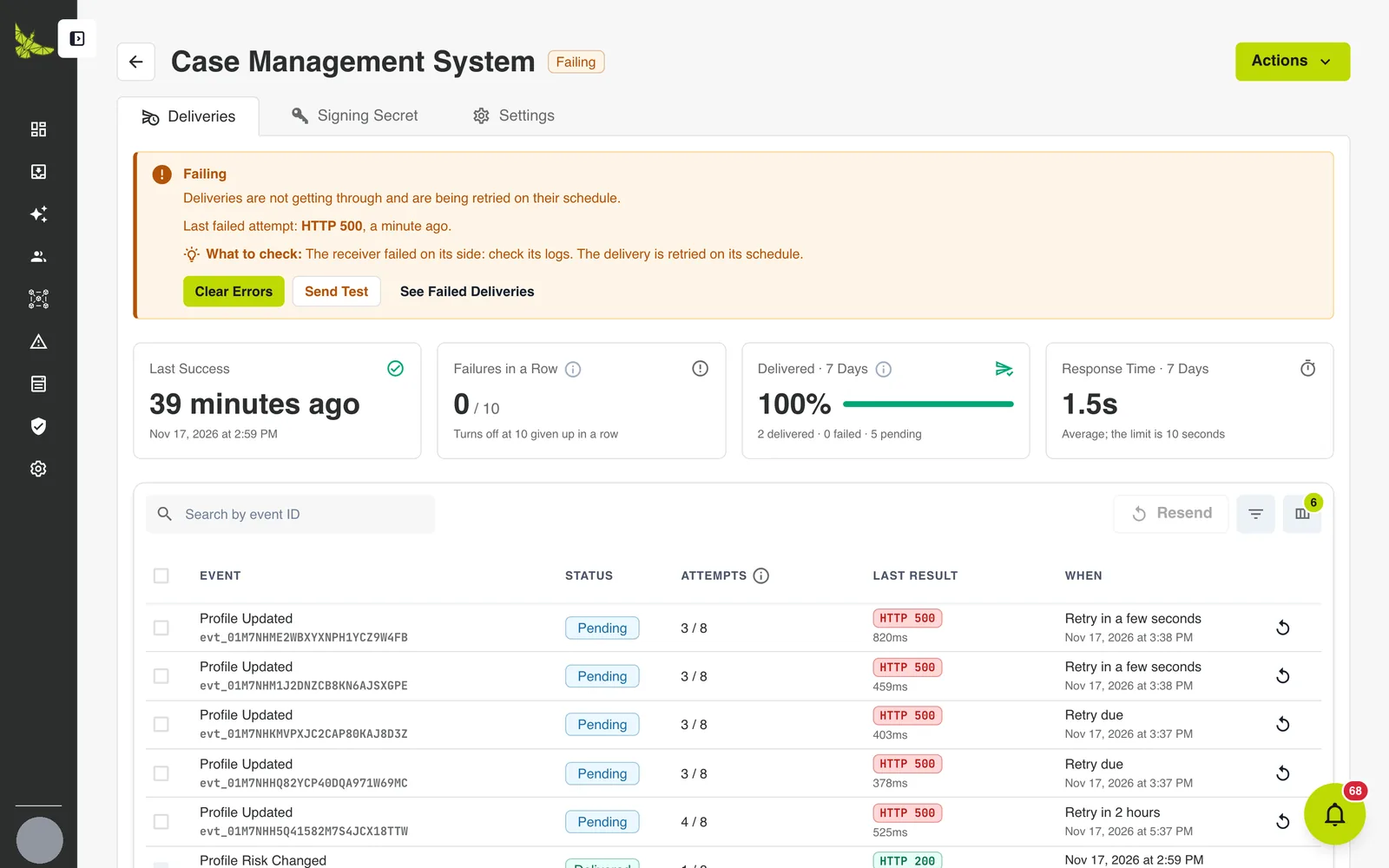
A webhook turned off after failures shows a red Turned off banner: "10 deliveries in a row were given up on. It takes no new events, and its pending deliveries wait until it is turned back on." The banner for a webhook turned off by hand names who turned it off and when.
| Banner | Meaning | Buttons |
|---|---|---|
| The last attempt failed (blue) | One delivery failed and will be retried. Nothing else is wrong yet. | Send Test, See Failed Deliveries |
| Failing (amber) | Deliveries are not getting through and are being retried on their schedule. | Clear Errors, Send Test, See Failed Deliveries |
| Turned off (red) | Either 10 deliveries in a row were given up on, or someone turned it off. The banner says which, and who. | Turn On, Send Test, See Failed Deliveries |
Every error you can see, and what to check
The Last Result column and each attempt show one of these. The hint is the text the app shows under "What to check".
| Last Result | What it means | What to check |
|---|---|---|
HTTP 3xx | Your receiver redirected. Redirects are not followed. | Use the final URL. |
HTTP 401 or HTTP 403 | Your receiver refused the request. | It verifies the signature with the current secret, over the raw body. |
HTTP 404, HTTP 405 or HTTP 410 | Nothing takes a POST at this path. | The URL. |
HTTP 408 or HTTP 429 | Your receiver is busy or rate limiting. | Nothing: the delivery is retried on its schedule. |
Any other HTTP 4xx | Your receiver rejected the event. | Its logs, for why it refused this payload. |
HTTP 5xx | Your receiver failed on its side. | Its logs. The delivery is retried on its schedule. |
Timed out | No answer within 10 seconds. | Answer 2xx at once and process the event afterwards. |
TLS error | The certificate could not be verified. TLS is Transport Layer Security. | The certificate is valid, current and covers the host. |
Connection failed | Nothing answered at this address. | The host, the port, and that the server is reachable. |
| Connected to a private address | The host now resolves to a private address. | Webhooks only go to public addresses. |
Internal error | CryptoComply could not send this attempt. Our team is alerted. | Nothing: it is retried on its schedule and does not count against the webhook's health. |
Fix it and resend
- Fix the receiver. Send Test confirms it answers
2xxagain. - Resend what did not get through. Choose See Failed Deliveries to list them, tick them, and choose Resend. Or open one delivery and choose Resend.
A resent delivery goes out on the next send cycle, usually within a minute or two. It keeps the same webhook-id and starts its retry schedule over. A delivered event cannot be resent. Neither can a pending delivery that has not been tried since it was last scheduled.
- When the webhook is Failing, Clear Errors marks it Active and sets Failures in a Row back to zero. Failed deliveries stay failed until you resend them.
- When it is Turned Off, choose Turn On. Pending deliveries go out within a minute, and the failure count starts again at zero.
Get told when a webhook fails
Each admin can choose to be notified. Open Notifications → Preferences, find the System section, and turn on Webhook Failing and Webhook Disabled, in the app, by email, or both. Both are off by default.

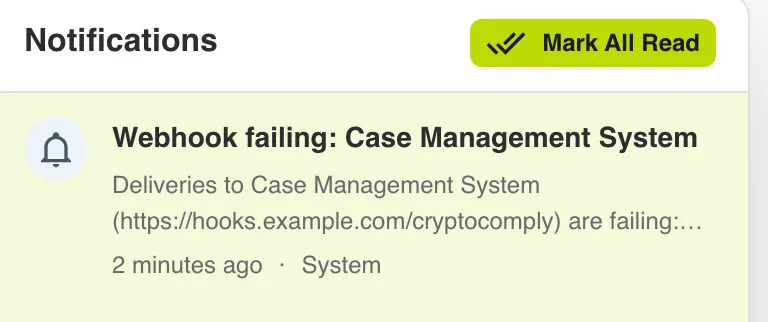
A webhook is reported as failing at most once every 24 hours.
6 · Change, rotate, turn off or delete a webhook
Change its settings
The Settings tab holds the same fields as the create form: name, URL and events. Choose Save Changes.
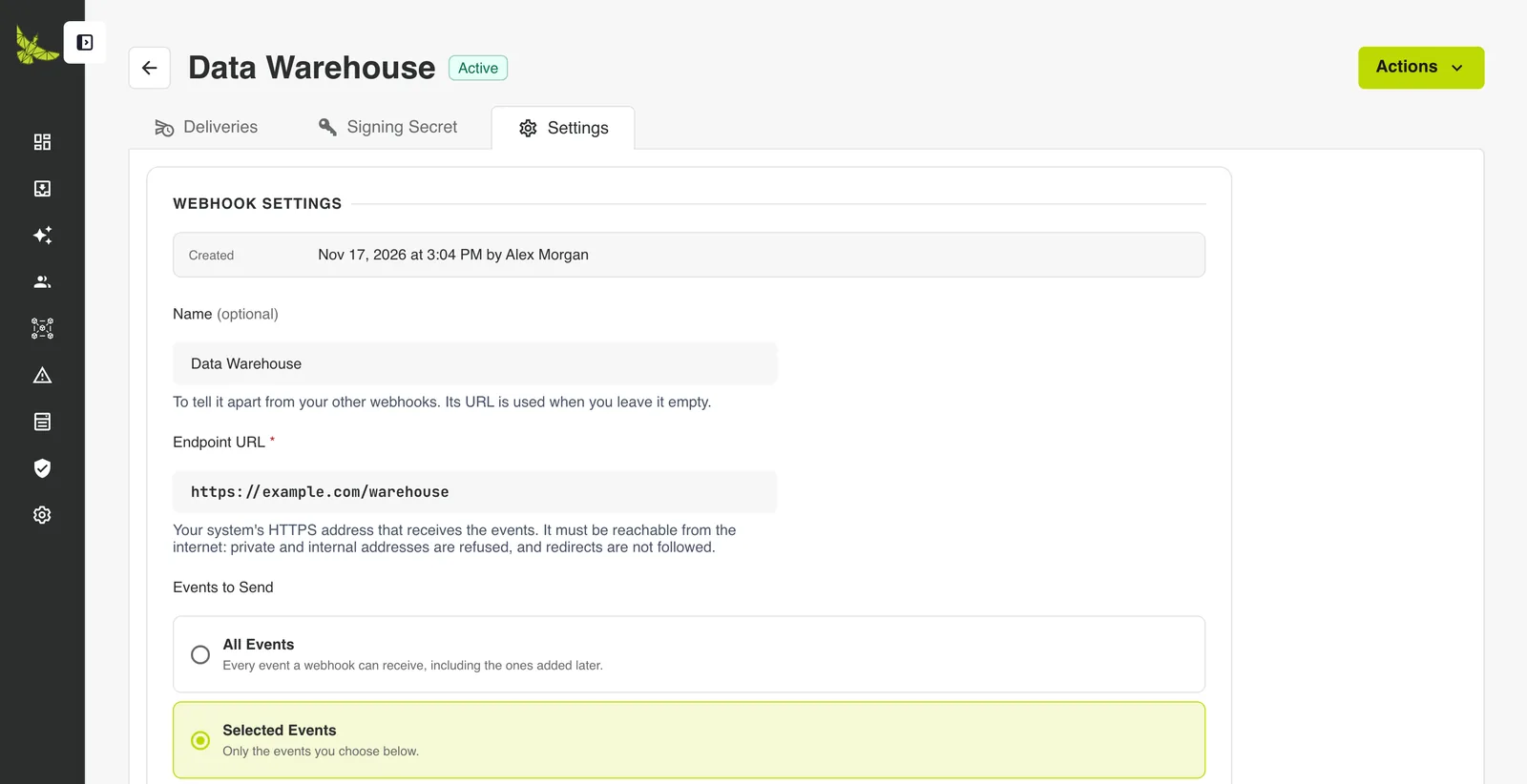
Pending retries use the new settings
Every attempt reads the webhook's current URL and secret. A retry still pending goes to the new URL. New event choices apply only to events that happen from now on.
Rotate the signing secret
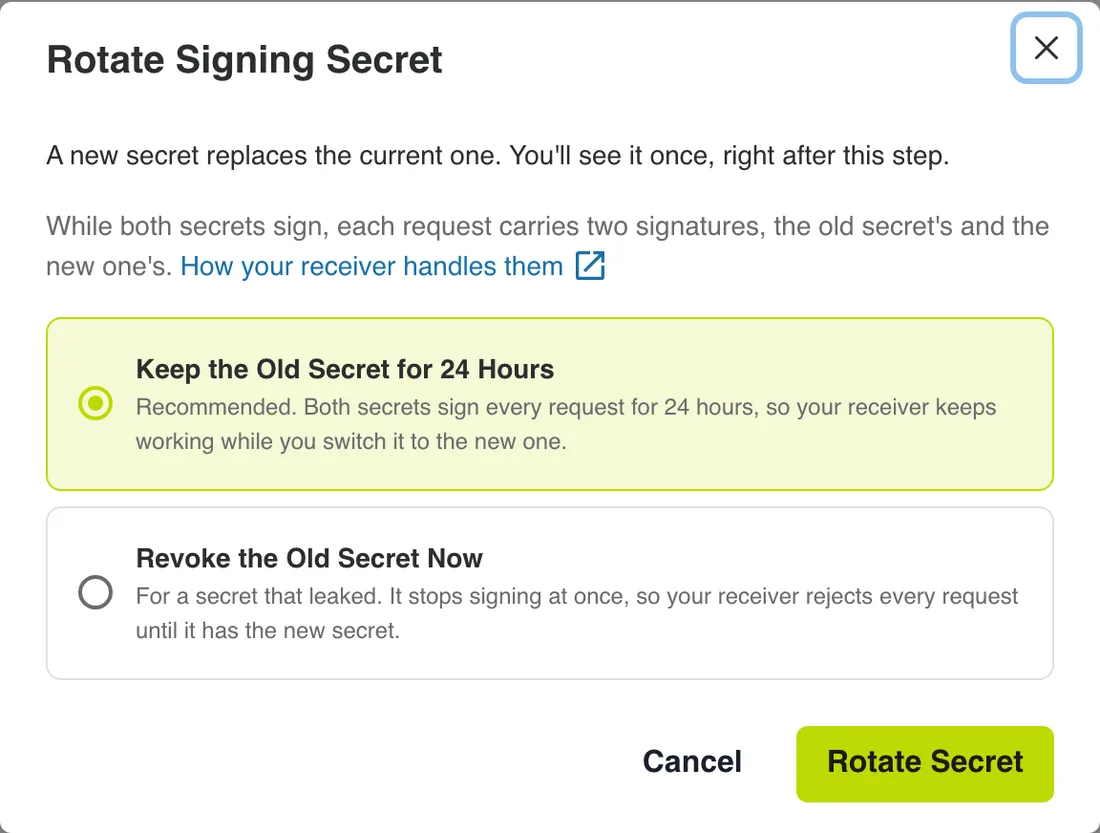
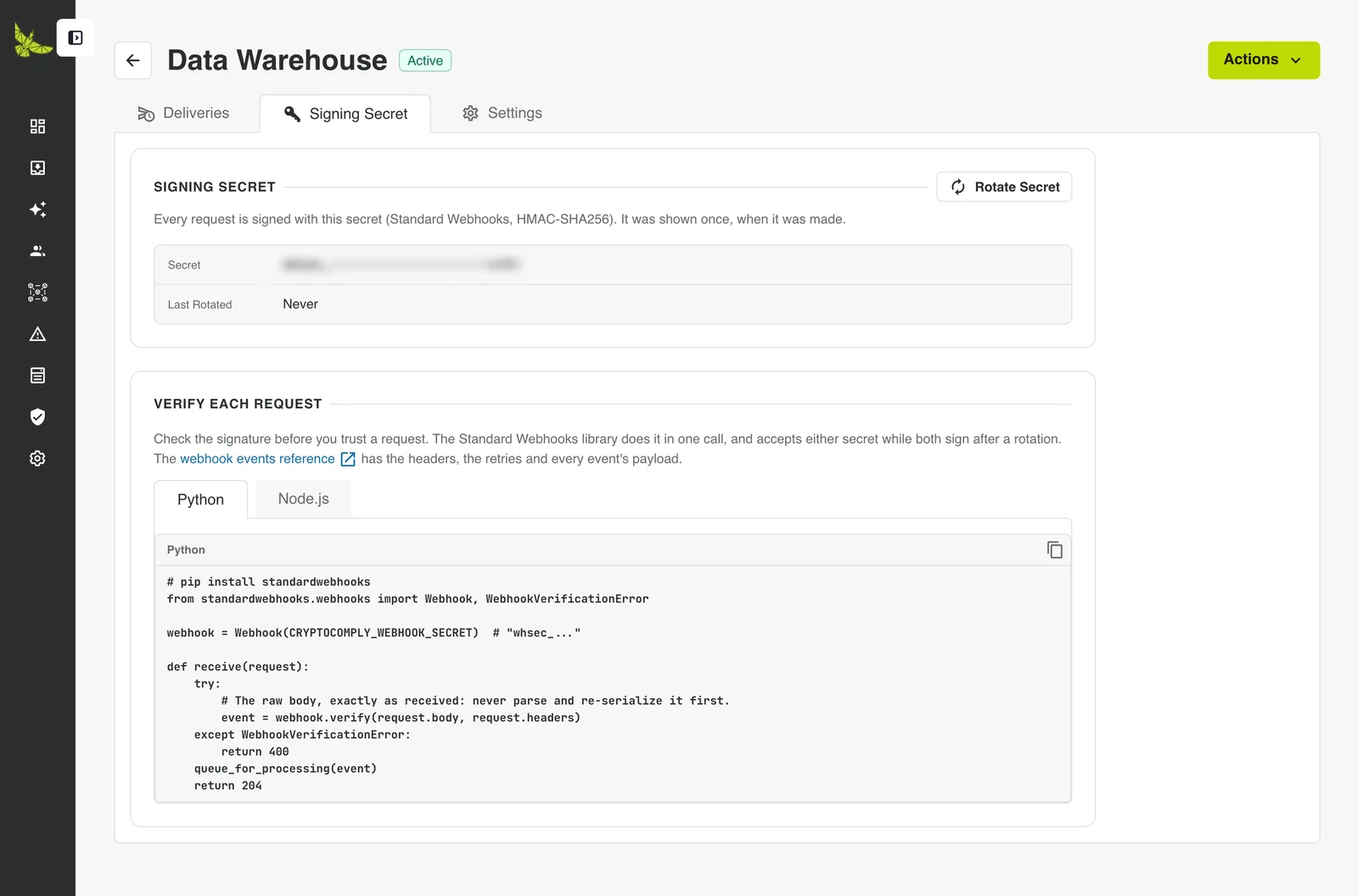
Rotate the secret on a schedule, or at once when it may have leaked. Actions → Rotate Secret, or Rotate Secret on the Signing Secret tab.
| Option | When to use it | What happens |
|---|---|---|
| Keep the Old Secret for 24 Hours (recommended) | A planned rotation. | Both secrets sign every request for 24 hours. Switch your receiver to the new one within that time. |
| Revoke the Old Secret Now | The secret leaked. | Only the new secret signs, at once. Your receiver rejects every request until it has the new one. |
The new secret is shown once, like the first one.
The Signing Secret tab shows the last characters of the current secret, when it was last rotated, and until when the previous one still signs. It also has code to verify each request.
Turn it off and on
Turn a webhook off while your receiver is down for maintenance: Actions → Turn Off.
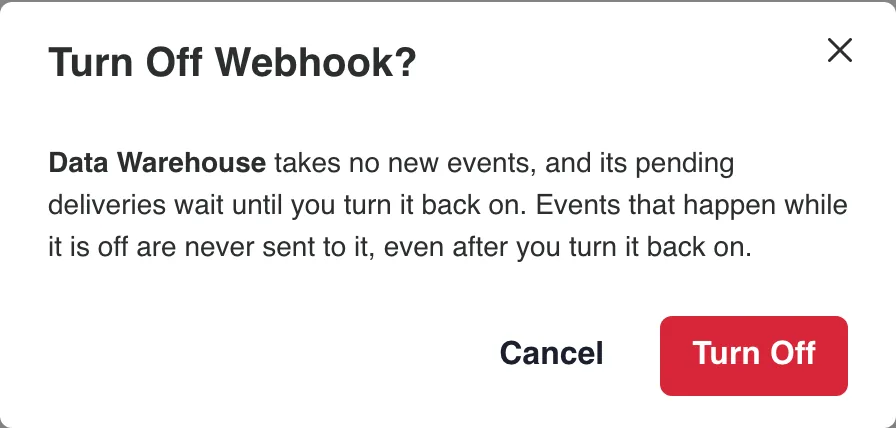
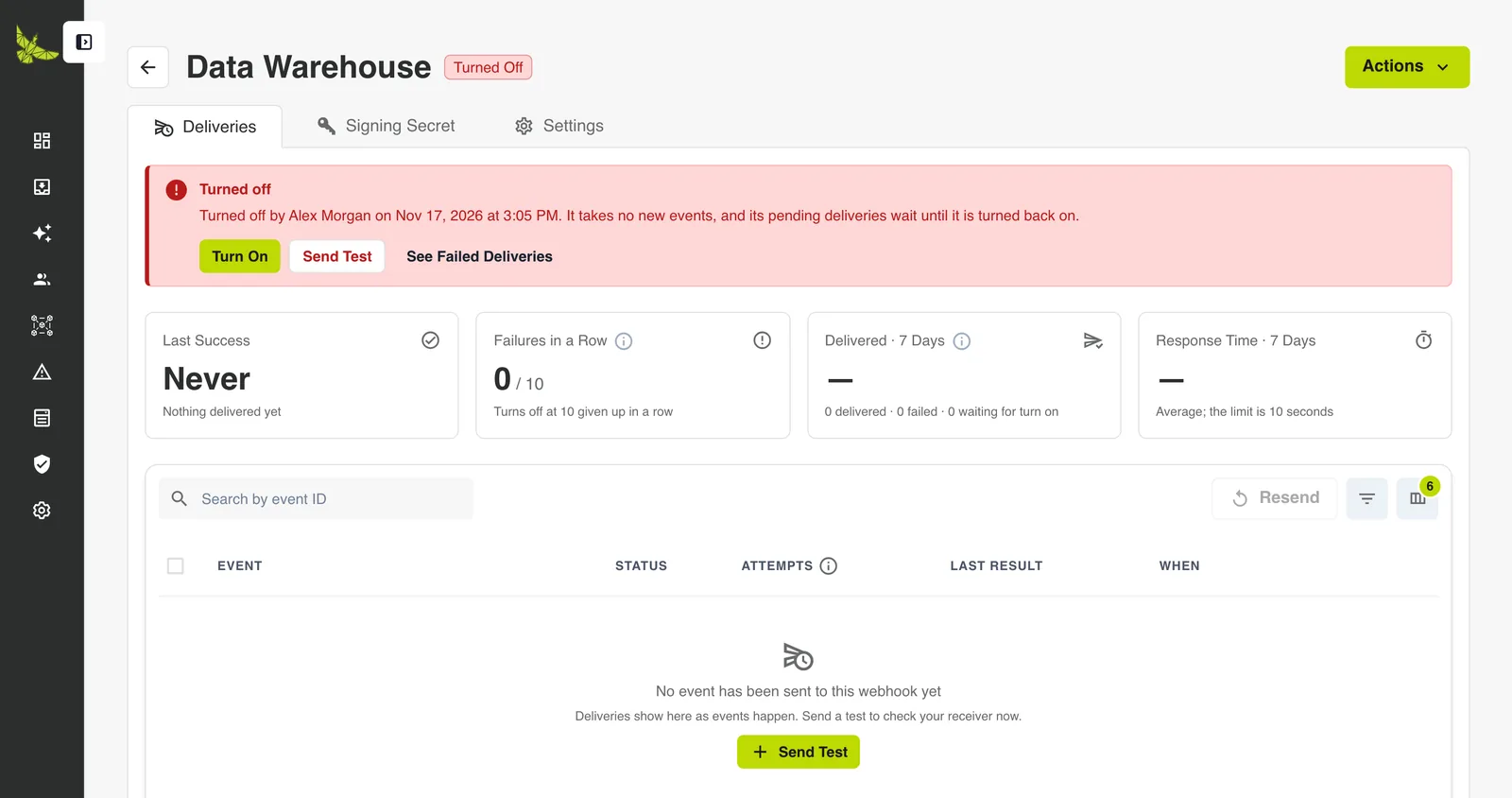
While it is off, the webhook takes no new events. Its pending deliveries wait, shown as "Waiting for turn on".
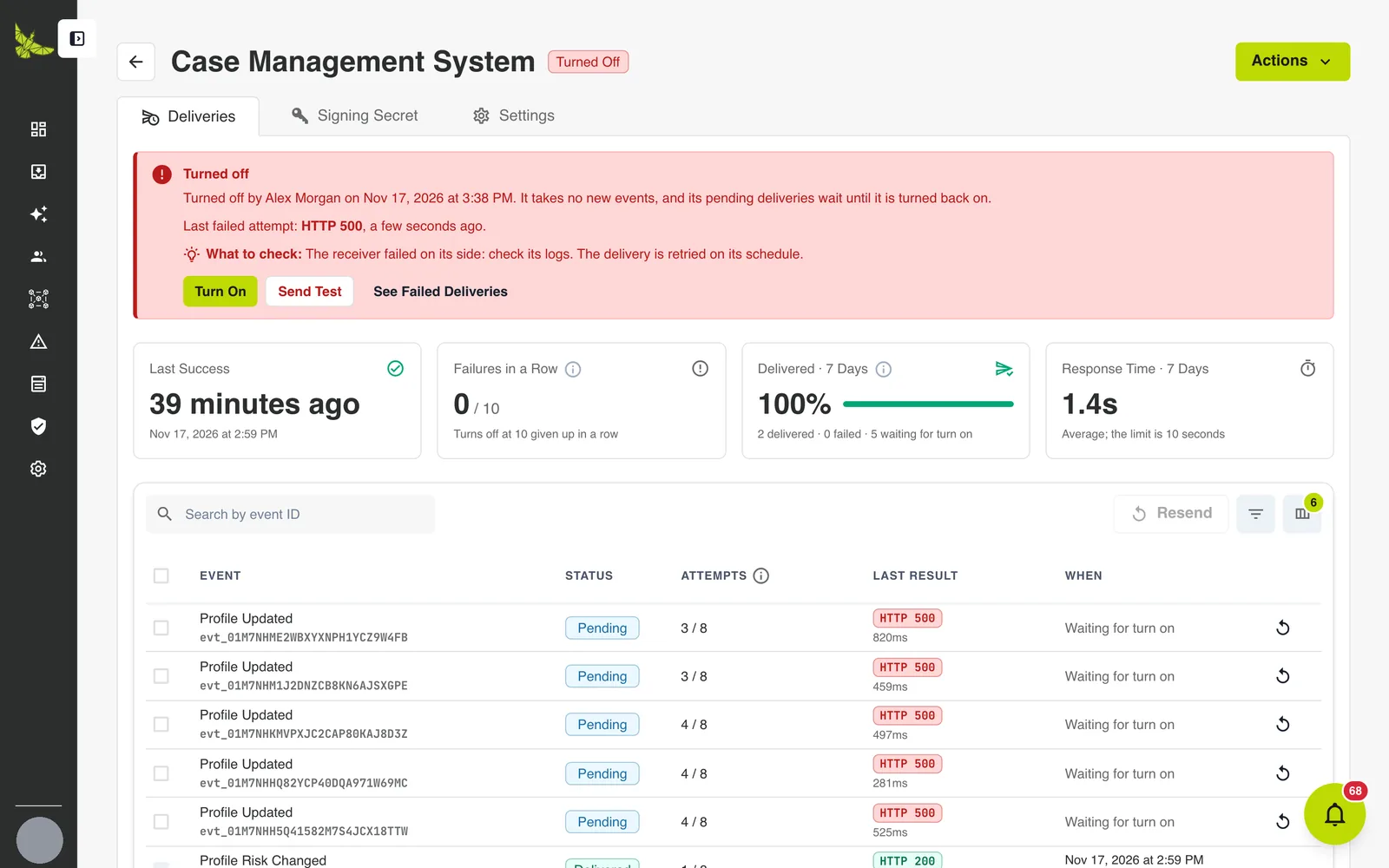 Turn On sends them within a minute. Events that happened while it was off are never sent to it.
Send Test still works while the webhook is off.
Delete it
Actions → Delete Webhook, or the Delete Webhook card at the bottom of the Settings tab.
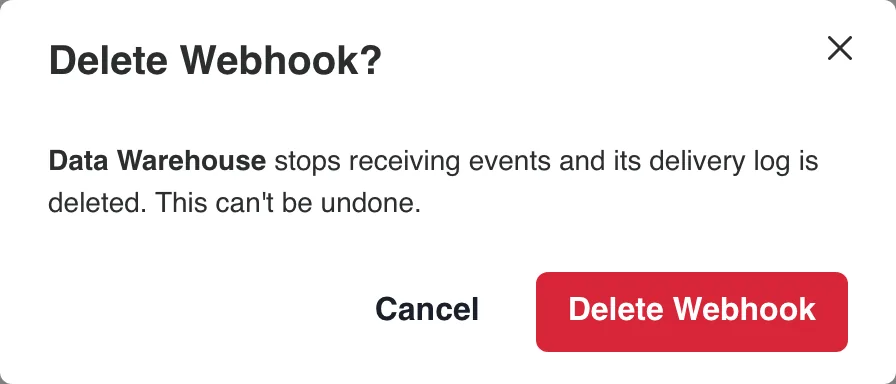
Deleting stops all events and deletes the delivery log. Deliveries still being retried are never sent. This cannot be undone.
7 · What CryptoComply sends
Every event is one POST with a JSON (JavaScript Object Notation) body.
Headers
| Header | Value |
|---|---|
content-type | application/json |
user-agent | CryptoComply-Webhooks/1 |
webhook-id | The event's ID, such as evt_01M7NHH5Q41582M7S4JCX18TTW. The same on every attempt. |
webhook-timestamp | When this attempt was sent, in Unix seconds. New on every attempt. |
webhook-signature | v1,<signature>. Two space-separated values for 24 hours after a rotation. |
Body
This is the profile.updated event from the delivery above:
json
{
  "event_id": "evt_01M7NHH5Q41582M7S4JCX18TTW",
  "event_type": "profile.updated",
  "schema_version": 1,
  "created_at": "2026-11-17T20:00:19.684621Z",
  "organization_id": 1,
  "is_test": false,
  "data": {
    "id": 1467,
    "external_id": "NW-1042",
    "profile_type": "entity",
    "changed_fields": ["project_name"],
    "href": "https://api.cryptocomply.xyz/api/orgs/1/profiles/1467/"
  }
}| Field | Meaning |
|---|---|
event_id | The event's ID: evt_ and a ULID (Universally Unique Lexicographically Sortable Identifier). Also in webhook-id. |
event_type | What happened, from the list below. |
schema_version | The version of data. A field removed or changed in meaning raises it. A new field can appear without a new version. |
created_at | When it happened, in UTC (Coordinated Universal Time). |
organization_id | Your organization. |
is_test | true for a test event. Its records do not exist. |
data | The record's IDs, what changed, and href. |
Each event type has its own schema in the API reference. This is profile.risk_changed: its headers, its body fields with data expanded, an example, and the answers that count as delivered.
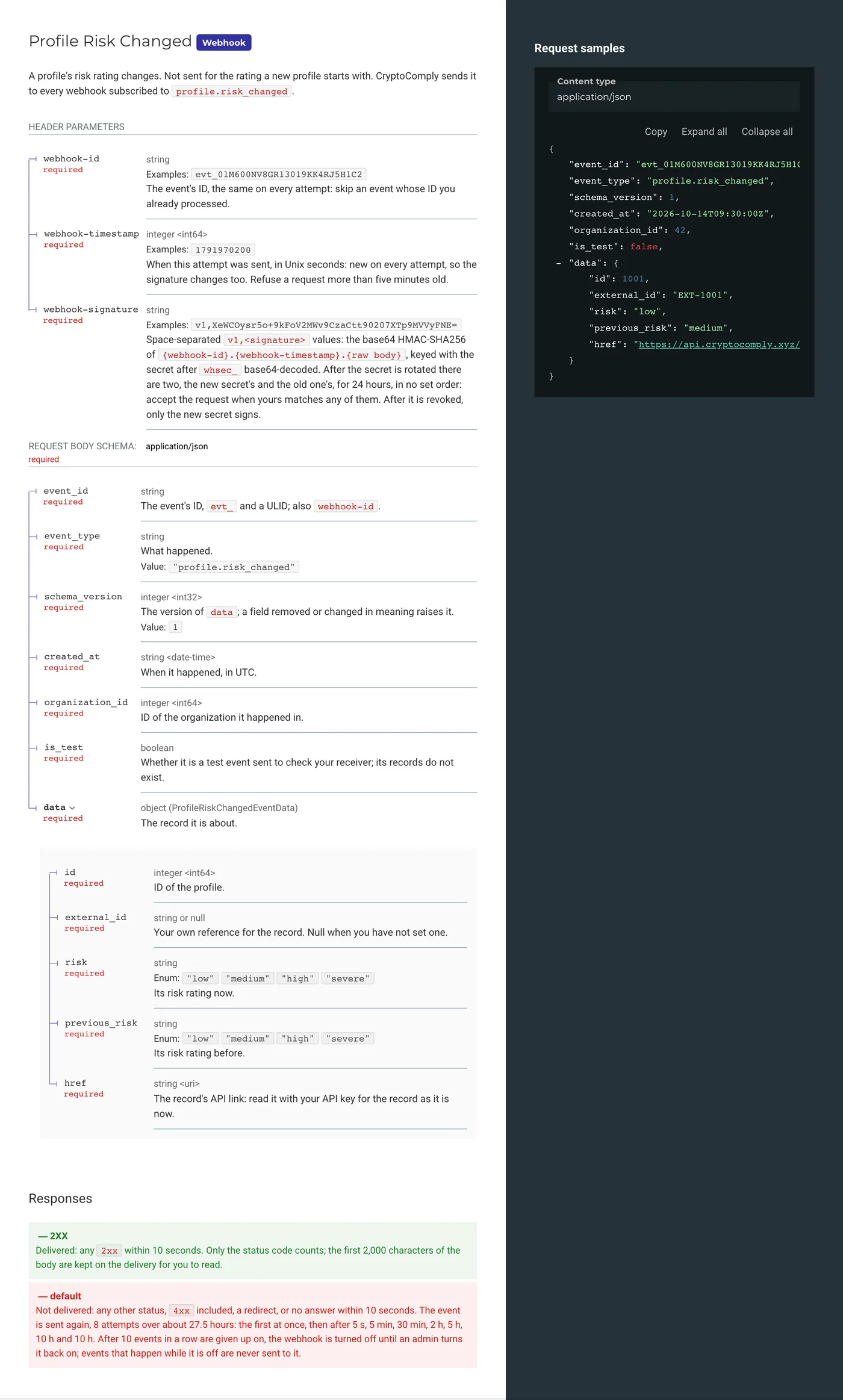
data is small on purpose. It names the record and what changed, not the record itself. Read the whole record from href with your API key when you need it. A profile.updated event, for example, names the fields that changed, not their values.
Event types
38 event types, in six categories. Each one's data fields, their types and an example are in the API reference.
Profiles
| Event | Sent when |
|---|---|
profile.created | A profile is added: by hand, by upload, through the API, from an intake form or from an RFI answer. Its first reviewer, if any, comes in this event. |
profile.updated | A profile's fields, custom fields or tags change. Not sent for review status, business relationship, risk rating or reviewer changes: each has its own event. |
profile.under_review | Its review status moves to Under Review. |
profile.rfi_sent | Its review status moves to RFI Sent, by hand or when an RFI is sent for it. |
profile.rfi_responded | Its review status moves to RFI Responded when the client answers its RFI. |
profile.escalated | Its review status moves to Escalated. |
profile.approved | Its review status moves to Approved. |
profile.declined | Its review status moves to Declined. Its open alerts close, each with alert.closed. |
profile.archived | Its review status moves to Archived. Its open alerts close, each with alert.closed. |
profile.risk_changed | Its risk rating changes. Not sent for the rating a new profile starts with. |
profile.activated | Its business relationship becomes active again. |
profile.deactivated | Its business relationship becomes inactive. Related parties deactivated with it send their own. |
profile.assigned | It is assigned to a member, or a member takes it. |
profile.unassigned | It is left with no one assigned, also when its reviewer leaves the organization. |
related_profile.created | A profile is linked to another as a related party: an owner, director, signatory or other role. |
related_profile.updated | A related party link changes the profile it points at, or its roles. |
related_profile.removed | A related party link is removed. Both profiles stay. |
Alerts
| Event | Sent when |
|---|---|
alert.created | An alert opens: watchlist hits, a blockchain address risk change, adverse media, a duplicate submission or a transaction. |
alert.reopened | A closed alert opens again because something new was found. |
alert.assigned | An alert is assigned to a member, or a member takes it. |
alert.unassigned | An alert is left with no one assigned. |
alert.escalated | An alert is escalated to another member, who it is then assigned to. |
alert.closed | An alert is closed with a decision, or because its profile was declined or archived. |
alert.decision_changed | The decision on a closed alert is changed. |
Blockchain addresses
| Event | Sent when |
|---|---|
blockchain_address.created | A blockchain address is added. Its first risk rating comes later, in blockchain_address.risk_changed. |
blockchain_address.risk_changed | Its risk rating changes after a screening, including its first rating. |
Information requests
| Event | Sent when |
|---|---|
rfi.created | An RFI is sent to the client. |
rfi.responded | The client answers it. |
rfi.closed | It is closed, once its answers are reviewed or when none needed review. |
rfi.revoked | It is withdrawn before the client answers. |
rfi.overdue | It passes its due date unanswered. |
Intake forms
| Event | Sent when |
|---|---|
intake_form_submission.received | Someone submits an intake form. Test submissions are not sent. |
intake_form_submission.processed | A submission becomes a profile, which also sends profile.created. |
intake_form_submission.held | A submission is held for review as a possible duplicate. |
intake_form_submission.dismissed | A failed submission is dismissed without being processed. |
Team and access
| Event | Sent when |
|---|---|
member.joined | Someone accepts an invitation and joins the organization. |
member.role_changed | A member's role changes. |
member.removed | A member is removed. Their profiles and alerts are left unassigned, each with its own event. |
8 · Verify the signature
Check every request before you trust it. The signature follows the Standard Webhooks specification: an HMAC-SHA256 (hash-based message authentication code with SHA-256) of the request, keyed with your secret.
Use the official library for your language. It checks the signature and refuses a timestamp more than five minutes old, which stops a captured request from being replayed.
Verify the raw body
Verify the body exactly as received. Parsing the JSON and serializing it again changes the bytes, and the signature no longer matches.
Python (pip install standardwebhooks):
python
from standardwebhooks.webhooks import Webhook, WebhookVerificationError

webhook = Webhook(CRYPTOCOMPLY_WEBHOOK_SECRET)  # "whsec_..."

def receive(request):
    try:
        # The raw body, exactly as received.
        event = webhook.verify(request.body, request.headers)
    except WebhookVerificationError:
        return 400
    queue_for_processing(event)
    return 204
Node.js (npm install standardwebhooks):
js
import { Webhook } from "standardwebhooks";

const webhook = new Webhook(process.env.CRYPTOCOMPLY_WEBHOOK_SECRET);

app.post("/cryptocomply/events", express.raw({ type: "application/json" }), (req, res) => {
  let event;
  try {
    event = webhook.verify(req.body, req.headers);
  } catch {
    return res.sendStatus(400);
  }
  queueForProcessing(event);
  res.sendStatus(204);
});
Without a library, the check has four steps:
- Take the secret after
whsec_and base64-decode it. That is the key. - Build the string
{webhook-id}.{webhook-timestamp}.{raw body}. - Compute its HMAC-SHA256 with the key, and base64-encode the result.
webhook-signatureholds one or more space-separatedv1,<signature>values, in no set order. Accept the request when yours equals any of them, compared in constant time, and the timestamp is within five minutes of now.
9 · Build a receiver that holds up
- Answer first, work later. Save the event, answer
2xx, then process it. A slow step should never time the request out. - Expect duplicates. Delivery is at least once. An event can arrive twice, for example when your answer was lost on the way back. Skip a
webhook-idyou already processed. - Expect any order. Two events close together can arrive in either order, and a retried event arrives after newer ones. Order by
created_at, and readhreffor the record as it is now. - Accept either secret during a rotation. For 24 hours,
webhook-signaturecarries two signatures. The libraries above accept either. - Ignore what you do not know. New event types and new
datafields can appear. Skip them instead of failing. - Treat test events as tests. Check
is_testbefore acting.
Where to find the reference
| What | Where |
|---|---|
Every event's data fields, types, nullable fields and an example body | REST API reference, section Webhook Events, or the full-page reference. The document icon beside each event in the app opens it. |
| Managing webhooks through the API: create, update, rotate, test, resend | REST API reference, section Webhooks, under /api/orgs/{org_id}/webhooks/. |
The API's error body and codes, such as webhook.url_not_allowed | Errors |
| The signature specification | standardwebhooks.com |