
Appearance
Manage profiles
By the end of this guide you can create a profile (or import a batch of them), find it in your list, read its overview, request missing information from the counterparty, and understand how it moves through review. It takes about ten minutes.
A profile is a counterparty you track — a person or an entity (a company, fund, or protocol). It holds the counterparty's identity details, documents, linked blockchain addresses, screening results, and a risk rating. Profiles are where your KYC (Know Your Customer) record for each counterparty lives.
Browse and find profiles
Open Profiles from the sidebar to see everyone you track.
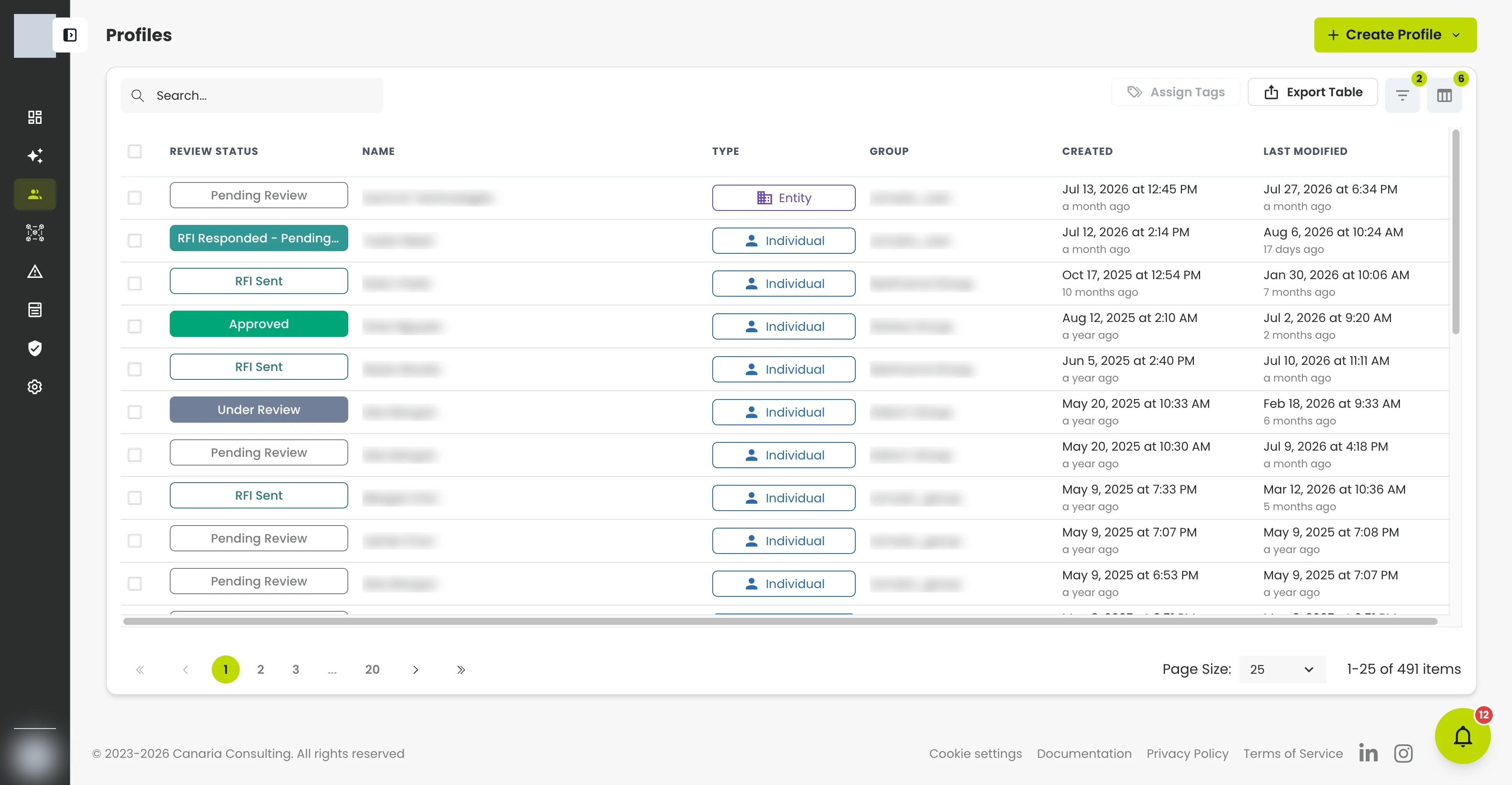
Each row shows the profile's review status, name, type (Individual or Entity), group, and when it was created and last modified. From here you can:
- Search by name, or use filters (the funnel icon) to narrow by status, type, group, and more.
- Customize columns to show or hide fields, and drag headers to reorder them.
- Assign Tags to selected rows, or Export Table to CSV (comma-separated values) or JSON for recordkeeping.
- Sort any column, and page through with the controls at the bottom.
Opening a shared link
If you open a link to a profile that lives in another organization you belong to, CryptoComply switches your active organization for you and takes you straight to it — you don't have to switch first and re-navigate.
Create a profile
- Click Create Profile.
- On Profile Information, enter a Profile Name, choose a Profile Type (Individual or Entity), and pick a Group.
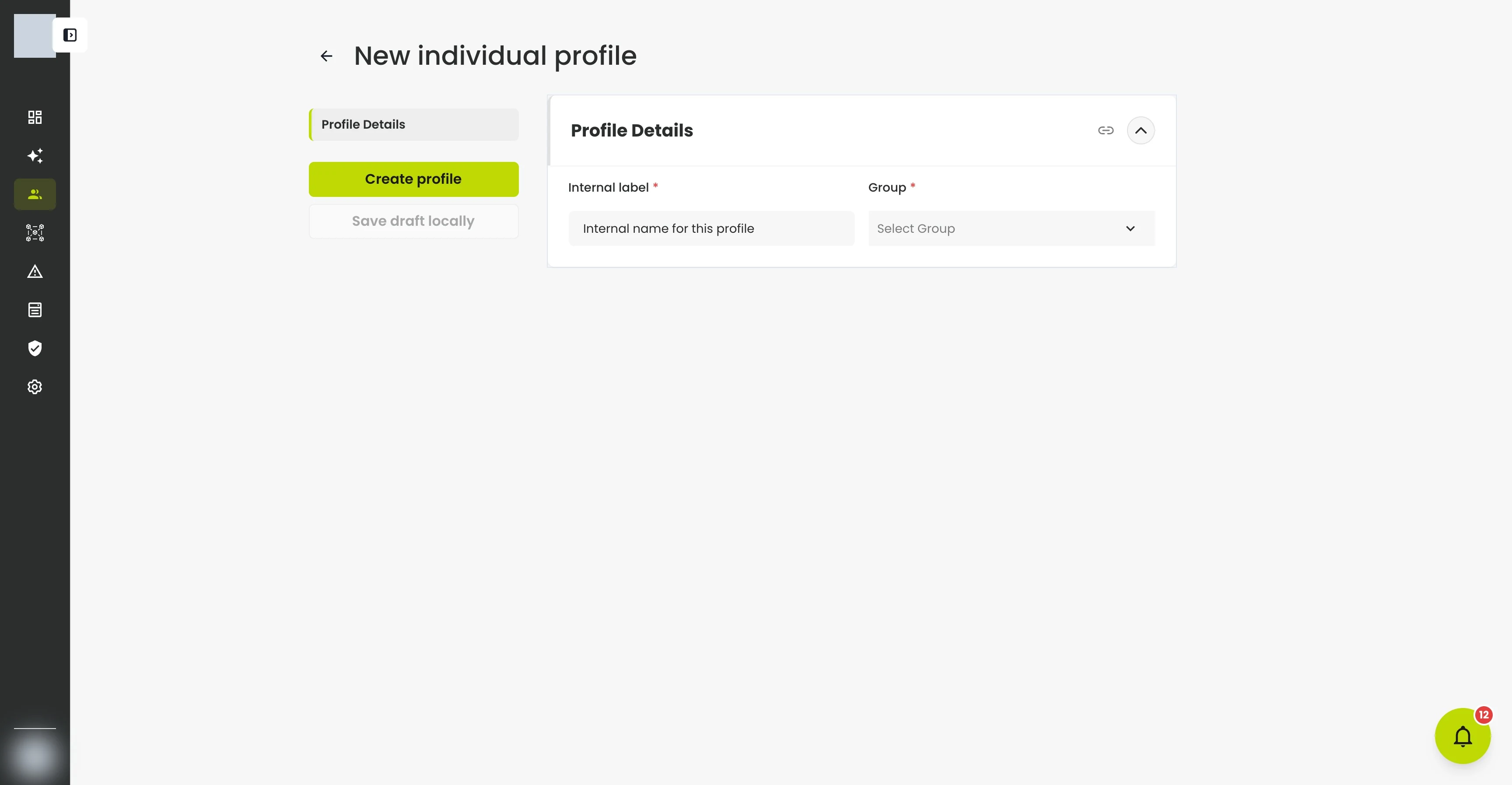
- Click Next and fill in the Primary Party details (the person or entity itself). The fields you see — and which are required — come from the group you chose, including any custom fields your organization has defined.
- Add any Related Parties — for example, beneficial owners, control persons, or directors — then finish.
You can fully provision the profile as you create it: set its screening schedule and screening configuration, apply tags, and record a rationale in the same step, instead of creating a bare profile and configuring it afterward.
Add a related party
Adding a related party offers everything creating a profile does, in one step. The dialog shows the same sections and custom fields the group defines (so it asks only for details your organization actually collects), and lets you tag the party, write its first note, and attach blockchain addresses while you add it. The form scrolls inside the dialog with the save buttons always in view.
What just happened?
As soon as you create a profile, CryptoComply screens it against sanctions and watchlists and assigns a risk rating. You don't need to kick off the first screening yourself.
Import profiles in bulk
To onboard many counterparties at once, use the guided bulk-import wizard instead of creating them one by one. It imports profiles (individuals or entities) or blockchain addresses from a single CSV file:
- Pick the group the imported records will belong to.
- Download a template that matches that group's fields, and fill it in.
- Upload your file.
- Review your data in an editable spreadsheet. Cells with problems are flagged inline — red for errors, amber for warnings — with the reason on hover, and the row number turns red so a bad row stands out even across many columns. Country and choice cells accept either the short code or the full name, and an address already tracked in your organization is flagged as a link-or-skip rather than an error.
- Fix cells inline and re-check without re-uploading, then import once everything is clean. A built-in reference lists every accepted field and value.
Read a profile's overview
Click any profile to open it. The Profile Overview summarizes everything at a glance.
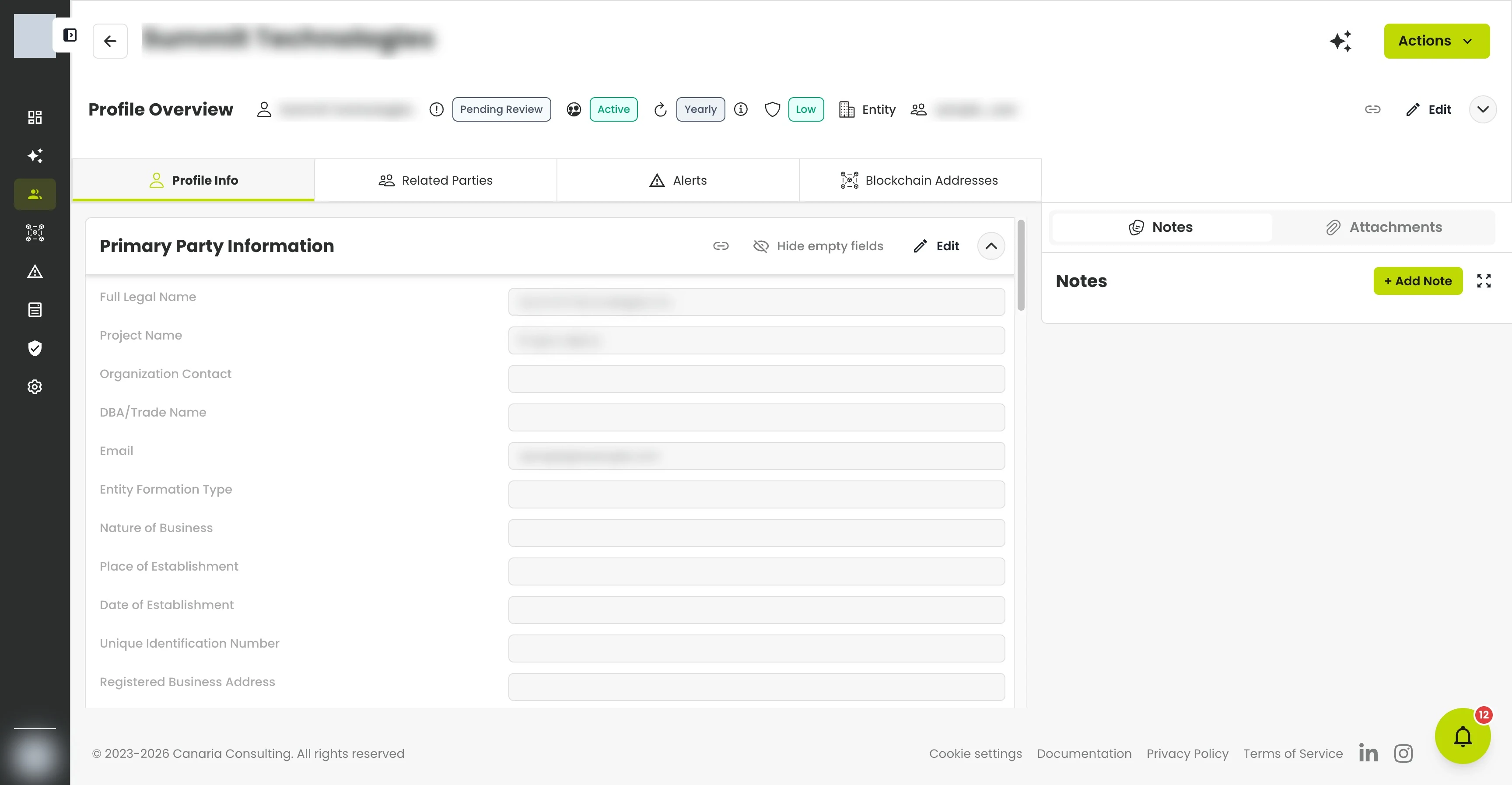
- The cards across the top show Review Status, Relationship Status, Risk Rating, Screening Frequency, type, group, and key dates.
- The tabs — Profile Info, Related Parties, Profile Screening, and Blockchain Addresses — hold the full record, including PEP (Politically Exposed Person) information and any blockchain addresses linked to this counterparty.
- On Profile Info, your organization's custom fields appear alongside the standard ones in Primary Party Information and are edited inline like any other field. A Hide empty fields toggle drops every field that was never filled in across the whole tab (including sections that end up empty); your choice is remembered in your browser.
- The Notes and Attachments panel on the right is where you record decisions and store documents.
- Use Edit on any section to update it, and Actions (top right) for tasks like generating a report or sending a request for information.
Live change highlights
When a teammate, an AI (Artificial Intelligence) assistant, or an automated screening changes something on the profile you're viewing, the exact fields, sections, tabs, badges, and rows that changed briefly flash, so you can see what moved. Your own edits never flash.
Request information from a counterparty
When a profile is missing details or documents, send a Request for Information (RFI) straight from the profile — use Send RFI on the Actions menu (both sending and reviewing are gated by your role's RFI permissions).
- Ask for specific fields and documents. The request form is schema-driven: pick the exact profile fields and document types you need, and the counterparty fills them in through a secure link.
- Add custom questions. Type your own free-text questions (up to 25) for anything the standard fields don't cover. An RFI can be question-only if that's all you need.
- Send reminders. For a request that's still open, use Send reminder — the row shows a reminder count and when it was last reminded, and View reminder email previews exactly what was sent.
- Send a follow-up. Once a request has been answered, Send follow-up opens a new request pre-linked to the original (typically question-only).
- See what was asked. A history drawer lists every request sent for the profile and the fields, documents, and questions each one asked for.
Review and adjudicate a response
When a response comes back, review it item by item — accept or reject each answer individually. Nothing changes on the profile until you accept it: accepting an answer writes that value onto the profile, while accepting a custom-question answer records it on the audit trail only (it never overwrites a profile field). A request is marked Closed once every item has been accepted or rejected.
Two kinds of status
CryptoComply tracks two independent statuses on every profile, so the due-diligence stage and the business relationship don't get conflated:
- Review status — where the profile sits in due diligence: Pending Review → Under Review → RFI Sent → RFI Responded → Escalated → Approved or Declined.
- Relationship status — the state of the business relationship: Active, Inactive, or Suspended.
Filter and sort by either one to build your work queue — for example, everything still in Pending Review.
You can archive a profile from any status when you're done with it, without moving it through intermediate steps first.
Organize with groups and tags
- Groups collect related counterparties (say, everyone from one onboarding campaign) and govern how they're handled: a group carries the screening schedule, risk thresholds, and the fields and sections that appear on a profile. The same group also governs the blockchain addresses assigned to it, so an address resolves its own schedule and thresholds through its group rather than through a linked profile.
- Tags are free-form labels you can apply in bulk from the list to slice your profiles any way you work.
What's next?
- Review alerts — work the risk changes and sanctions hits CryptoComply raises.
- Screen a blockchain address — link addresses to a profile and screen them.
- Connect an AI assistant — ask an AI tool to triage profiles for you in plain language.
Troubleshooting
| Problem | Fix |
|---|---|
| Can't create a profile | Profile Name, Type, and Group are all required. A read-only role can't create profiles — ask an admin. |
| A new profile shows no screening yet | Screening runs in the background on creation; give it a moment and refresh. |
| Can't find a profile | Clear active filters (the funnel shows a count when filters are on), or search by name. |
| A bulk import won't go through | Fix the flagged cells (red errors must all clear; amber warnings are advisory) and re-check — you don't need to re-upload. |
| Can't send or review an RFI | Sending and reviewing are separate role permissions — ask an admin to grant the one you need. |
| The risk rating looks wrong | It reflects current thresholds and screening. Re-screen, or check your exposure-risk thresholds. |