Appearance
Getting Started in 5 Minutes
By the end of this guide you will know your way around CryptoComply: what your dashboard is telling you, where the core sections live, and how to run your first screening. It takes about five minutes.
CryptoComply is a compliance platform for crypto businesses. It handles KYC (Know Your Customer — verifying who you do business with) and AML (Anti-Money Laundering — detecting illicit funds), so you can screen counterparties and wallets, monitor risk, and keep an audit trail.
1. Sign in
Go to app.cryptocomply.xyz and sign in. After signing in you land on your Dashboard.
If your company uses more than one workspace, your organization name appears at the top of the left sidebar — that's the data you're currently looking at.
2. Read your dashboard
The dashboard is the health check for your whole compliance program at a glance.
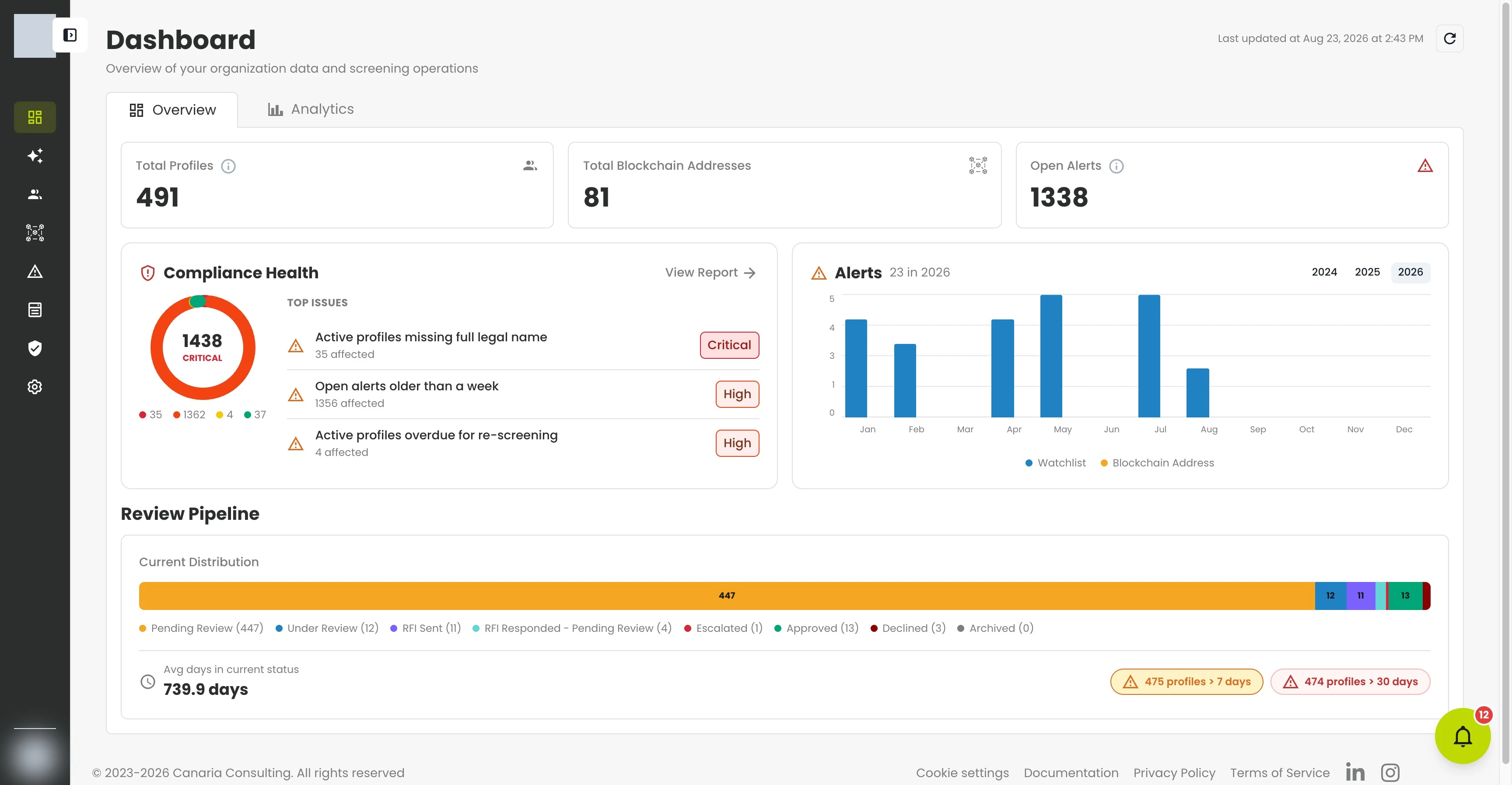
- Total Profiles — the counterparties (people and entities) you track.
- Total Blockchain Addresses — the wallets you screen.
- Open Alerts — things that need attention, such as a new sanctions hit or a risk change.
- Compliance Health — a graded score with your top issues to fix, like profiles missing a legal name or addresses that failed screening.
- Alerts chart — how alerts have trended over the year.
- Review Pipeline — where your profiles sit in the review workflow, from Pending Review through Approved or Declined.
What just happened?
You didn't configure any of this. CryptoComply continuously screens your profiles and addresses in the background and rolls the results up into these numbers, so the dashboard always reflects your current risk posture.
3. Find your way around
Everything lives in the left sidebar. Click the toggle at the top to expand it and see labels.
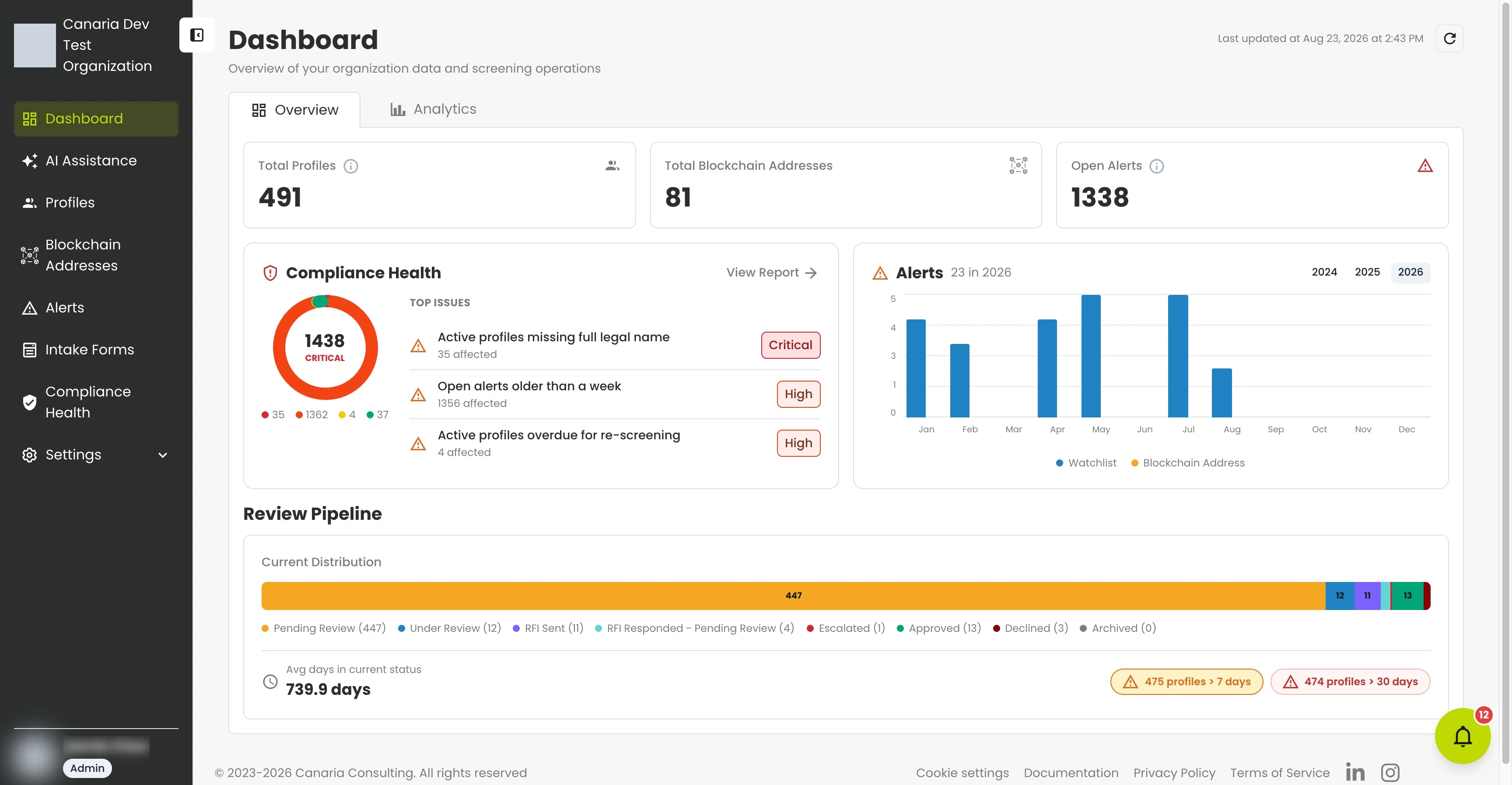
- Dashboard — the overview you just read.
- AI Assistance — ask questions about your compliance program in plain language and get policy-aware answers.
- Profiles — the counterparties you track, their data, documents, and linked wallets.
- Blockchain Addresses — the wallets you screen for sanctions and illicit-activity exposure.
- Alerts — risk changes and sanctions hits to review, assign, and resolve.
- Compliance Health — the full report behind your dashboard score, with every issue and who's affected.
- Settings — your organization, team members, and roles.
Two things worth knowing up front: you can switch to a dark theme from the sidebar whenever you prefer it, and CryptoComply works on your phone too — every page, table, form, and dialog adapts to a small screen, with a bottom navigation bar in place of the sidebar.
4. Run your first screening
The fastest way to see CryptoComply work is to screen a blockchain address.
- Open Blockchain Addresses from the sidebar.
- Click Register New Blockchain Address.
- Enter an address, pick its blockchain, give it a name, and click Add.
CryptoComply screens it immediately and opens its screening page with a risk level and exposure breakdown.
What just happened?
CryptoComply analyzed the address against sanctions lists and on-chain data, identified the entity behind it, traced its exposure to risky counterparties, and assigned a risk level — in seconds. The full walkthrough is in the Address Screening guide.
What's next?
- Screen a blockchain address — the complete screening, monitoring, and casework workflow.
- What is CryptoComply? — the bigger picture of what the platform does and who it's for.
- Connect an AI assistant — use CryptoComply from Claude, ChatGPT, Cursor, and other AI tools.
Troubleshooting
| Problem | Fix |
|---|---|
| Can't sign in | Use the same method your team set up (email or Google). If you've never signed in, ask a teammate to send you an invitation. |
| The dashboard is empty | A brand-new workspace has no data yet. Add a profile or screen an address to populate it. |
| You're seeing the wrong data | Check the organization name at the top of the sidebar — you may be in a different workspace. |