
Appearance
Review alerts
By the end of this guide you can work your alerts queue: open an alert, judge its hits, record your decision, and resolve it. It takes about ten minutes.
An alert is raised whenever CryptoComply detects something that needs a human decision — a new sanctions or watchlist hit, a change in risk level, or new exposure. Alerts come from two sources: watchlist screening (a profile matched a sanctions, Politically Exposed Person — PEP — or watchlist entry, screened through World-Check) and blockchain-address screening (a monitored address's on-chain risk changed, screened through Chainalysis and TRM).
Work the alerts queue
Open Alerts from the sidebar. This is your queue of everything awaiting review.
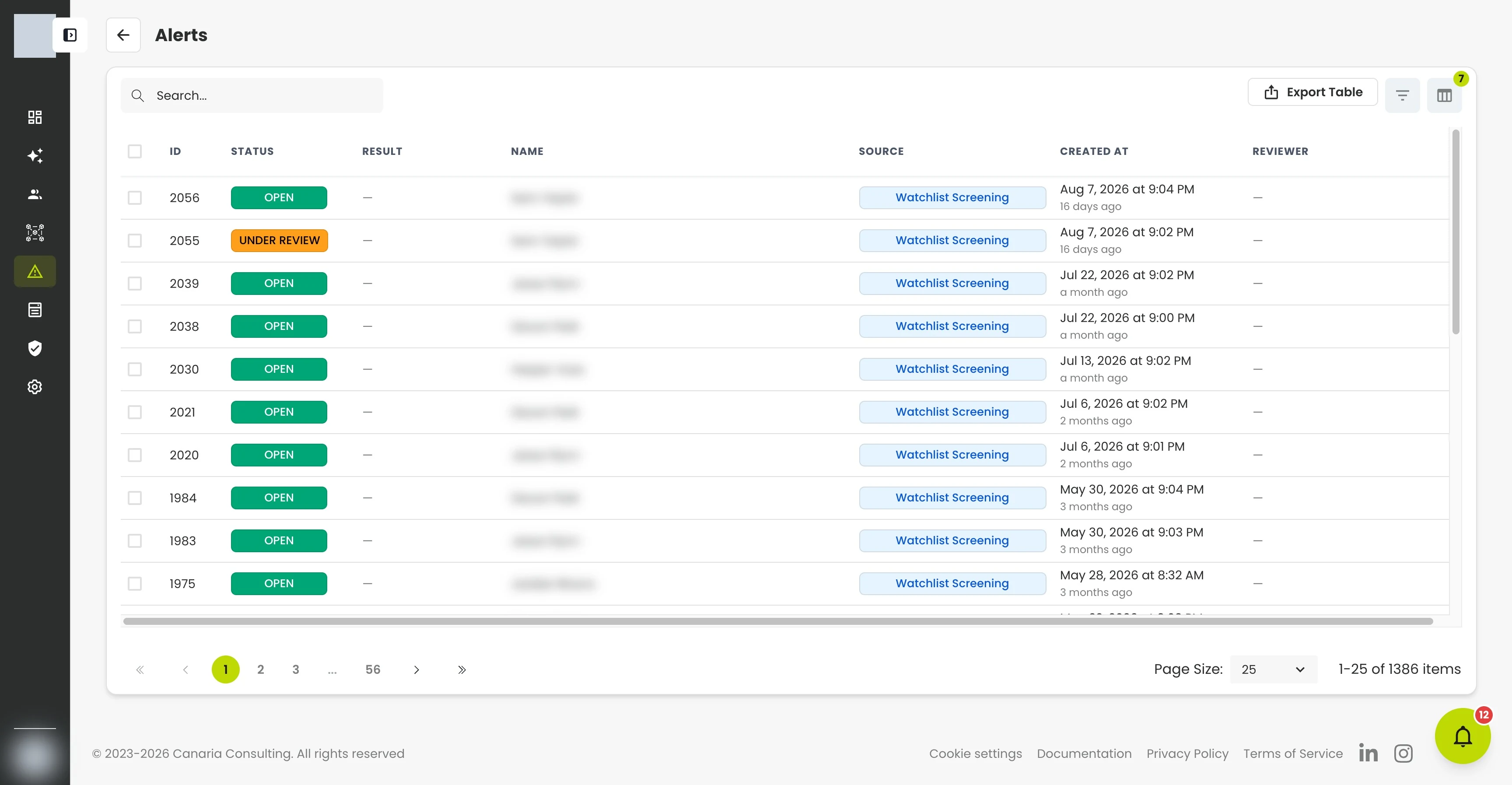
Each row shows the alert ID, status, the name of the profile or address it concerns, the source, when it was created, and who it's assigned to and reviewed by.
Filter the list inline to find what matters first: by risk tier, by sanctions / PEP / adverse-media flags, and by watchlist source. Search, sort, or Export Table as needed — sort by status or created date to work oldest-open-first.
Open an alert
Click any alert to open its dedicated detail page, sized for the decision.
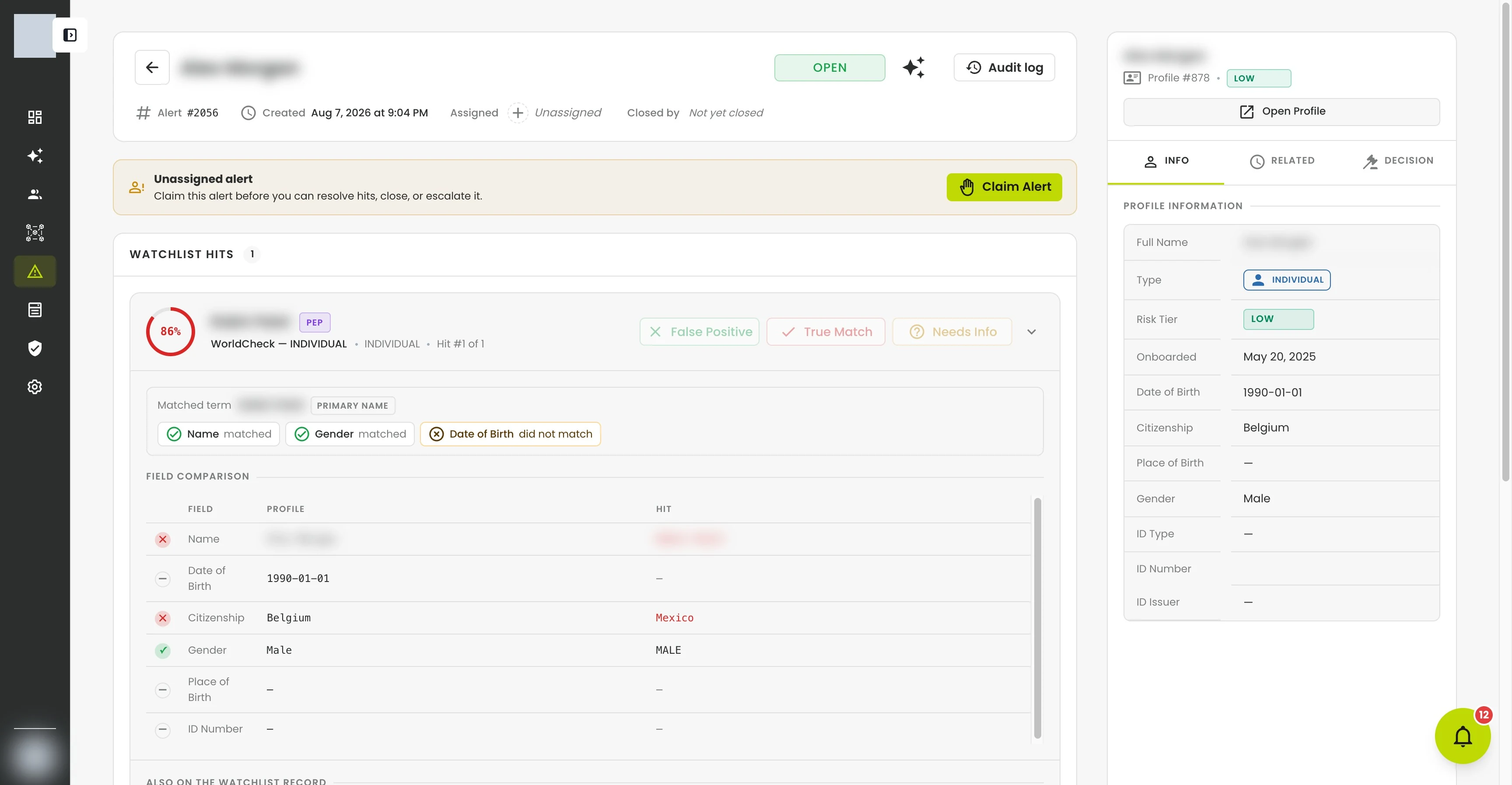
The header carries the alert type and status, the linked profile or address, and the lifecycle actions grouped together so your next move is obvious — Claim, Assign, Unassign, Escalate, and Close. Previous/next controls in the header let you step through the queue without going back to the list.
What fills the page depends on the alert type:
- Watchlist alerts open on a hit-by-hit comparison panel — your customer against each listed party.
- Blockchain-address alerts open on a risk-change breakdown, with any new exposures highlighted so you can see exactly what shifted since the last screening.
A side panel collects the alert's audit trail, the decision form, and its related alerts — other open alerts touching the same profile or address. ⌘/Ctrl-click or middle-click a related alert to open it in a new browser tab and compare the two side by side.
Investigate a watchlist hit
For each hit, compare the matched entity against your profile — name, date of birth, citizenship — and decide whether it's a true match or a false positive. A common false positive is a shared or similar name with a different date of birth or country.
The hit card leads with the side-by-side comparison of your customer against the listed party at full width, and shows every identifier the record carries (national, tax, and sanction-listing numbers, and all passports — not just the first). It links out to the vendor's own record. Screening results are presented consistently on screen no matter which provider they came from.
To help you judge the match faster, each hit card can show:
- Why it matched — the exact listed term that triggered the hit (flagged when it was an alias, or "also known as", rather than the primary name), and a field-by-field verdict across name, date of birth, country, and gender (for example, "Name matched, Date of Birth did not match").
- Additional details — the vendor's narrative for the listed party (biography, identification, reports, and per-regime sanction notes), shown as collapsible sections so long entries stay out of your way until you need them.
- Source citations you can trust — each cited source carries a per-link status: Live, Wayback (an Internet Archive snapshot near the citation date), Archived copy only, or Unavailable. Opening a source shows a self-contained archived copy that still works even when the original site is gone.
Investigate a blockchain-address alert
A blockchain-address alert opens on a risk-change breakdown that highlights new exposures, so you can focus on what changed rather than re-reading the whole screening. For the full on-chain picture — counterparties, exposure categories, and screening history — see Screen a blockchain address.
Record your decision
For each hit, record whether it's a true match or a false positive, with a short rationale. Everything you conclude is captured in the audit trail so the review is defensible later.
A decision isn't a dead end. Its assignee can reopen a resolved hit — the rationale you already wrote is carried over for you to amend rather than retype, and the reasoning has to actually change before the revision is accepted. If the alert was already closed, you're then asked whether its disposition still stands, since that disposition was recorded against the verdict you just changed. The same revision is available when working through Comply AI.
Claim, assign, escalate, or close
- Claim an alert to take ownership. Taking over an alert already owned by someone else requires a rationale, which is recorded on the audit trail.
- Assign an alert to a teammate with a short rationale explaining the handover — it's delivered to the assignee with their notification. Use Unassign to release it.
- Escalate when an alert needs senior review, naming the recipient and the reason; both travel with the escalation notification.
- Close once the alert is resolved, recording a disposition — Cleared, Risk Accepted, EDD Required (Enhanced Due Diligence), or Offboarding Required — alongside your closing rationale. The team is notified with the disposition and reasoning.
See a profile's alerts
A profile's detail page has an Alerts tab listing every alert linked to that profile. Above the list, a banner summarizes open alerts for the profile's related parties — ultimate beneficial owners (UBOs), controllers, and officers — so you can pivot laterally across a customer's network during enhanced due diligence without leaving the profile.
What just happened?
You didn't create these alerts — CryptoComply's ongoing screening did, the moment a hit or risk change appeared. When you claim, assign, note, escalate, or close one, that action and its rationale are recorded in the audit trail and the right teammates are notified, so the whole review is defensible to an auditor or regulator.
What's next?
- Manage profiles — open the profile behind a watchlist alert.
- Screen a blockchain address — the blockchain-address screening and monitoring side.
- Connect an AI assistant — ask an AI tool to summarize and triage open alerts.
Troubleshooting
| Problem | Fix |
|---|---|
| Too many alerts | Filter by risk tier, by sanctions / PEP / adverse-media flags, or by watchlist source, and sort by created date to work the oldest first. Tighten screening cadence or thresholds if a source is too noisy. |
| Can't close an alert | Resolve its hits first; the Close action stays disabled until the alert is in a closeable state. |
| Not sure if a hit is real | Read the match explanation and field-by-field verdict, and compare date of birth and country — not just the name. Document your reasoning before closing. |
| Need to change a decision you already recorded | Its assignee can reopen a resolved hit and amend the rationale; the reasoning must actually change to be accepted. If the alert was closed, you'll be asked whether its disposition still stands. |
| An alert isn't assigned to anyone | Use Claim to take it, or Assign to give it an owner, so it doesn't fall through the cracks. |